
PromptPalette
Chrome extension for ChatGPT and Gemini
Your image and your usual instructions, with one shortcut.
Prepare image generation in ChatGPT and Gemini from a screenshot or image file and a saved prompt. PromptPalette attaches the image, switches the chat to image creation, and types your prompt.
- Available
- Google Chrome 120 or later
- Free
- English and Japanese
- Version 3.0.1
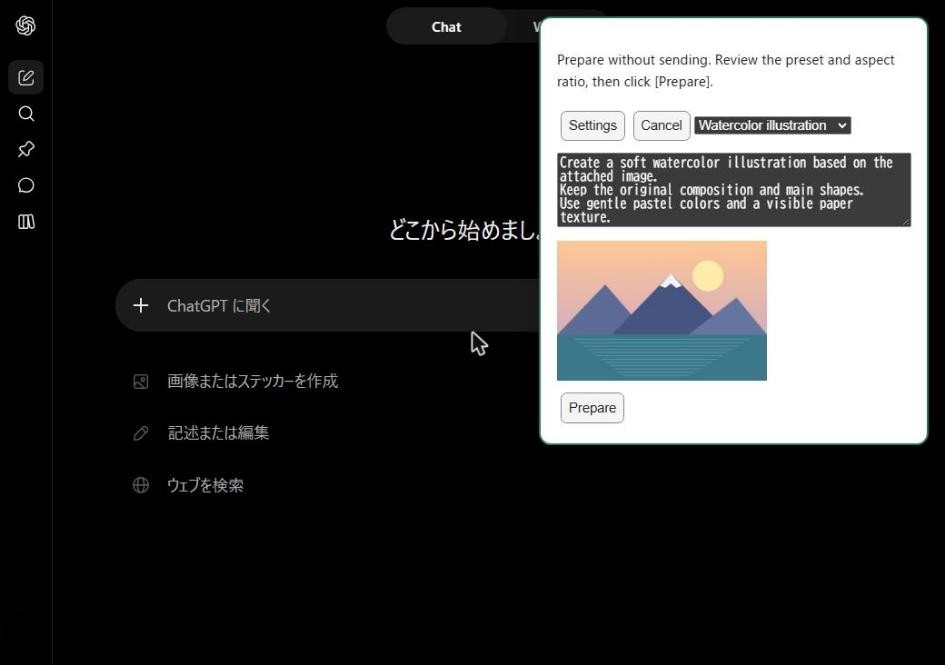
Copy an image → Prepare → Review and send
-
Copy an imageTake a screenshot to the clipboard. You can also start from an image file.

-
Prepare with a shortcutPress Ctrl+Shift+Y in ChatGPT or Gemini. The image, image creation mode and prompt are filled in.
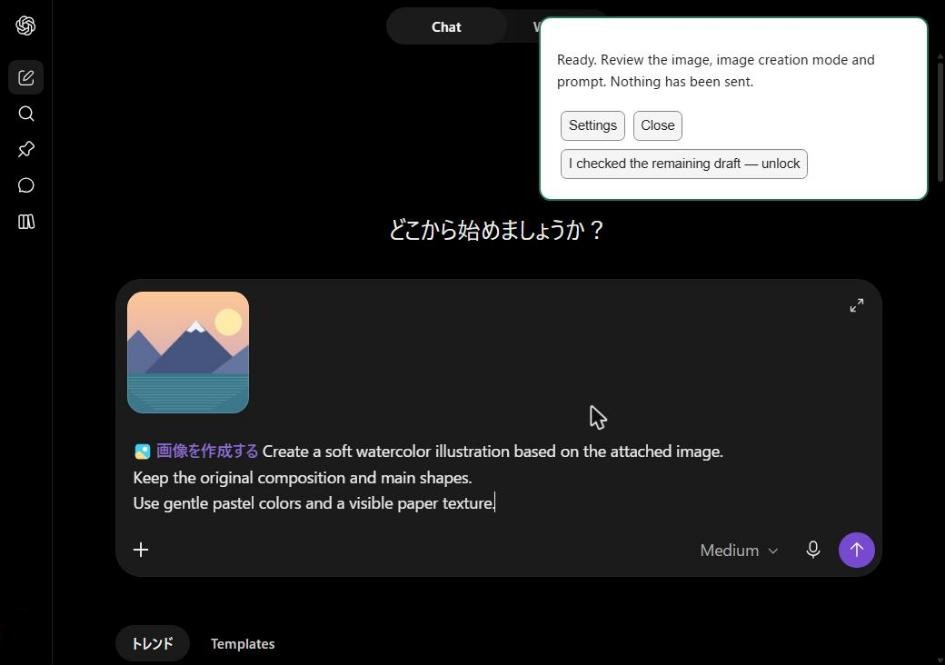
-
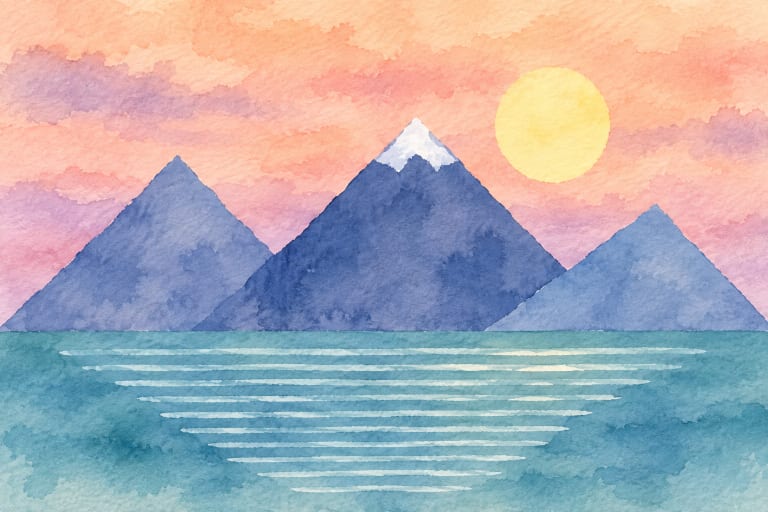
Review and sendAuto-send is off by default, so you can review and edit before sending.
About image upload: Even with auto-send off, the image may be uploaded to ChatGPT or Gemini when it is attached during preparation. Reviewing before sending lets you check what goes into the conversation; it does not mean the image stays inside the extension. See the privacy policy for details.
Capture with AreaShot, then use PromptPalette
On Windows, AreaShot is a convenient way to capture just the area you need, copy it to the clipboard and pass it straight to PromptPalette without saving an image file first.
- Press AreaShot’s shortcut (default: Ctrl+Alt+S), select an area and choose Copy to clipboard. Add arrows or text first if needed.
- In Chrome, open an empty ChatGPT or Gemini chat and press PromptPalette’s shortcut (default: Ctrl+Shift+Y).
- Check the preset and image, click Prepare, then review and send.
AreaShot is optional. You can also use an image captured with Win+Shift+S or any other copied image.
When it helps
If your image changes but your instructions stay the same, save those instructions as a preset and reuse them.
Screenshots into illustrations
Redraw part of a web page or slide in your usual style.
Teaching materials
Start from a photo or diagram to request line art or a coloring page.
Blog and social images
Reuse saved instructions to request thumbnails.
Compare ChatGPT and Gemini
Use the same image and instructions in each. Gemini also lets you choose an aspect ratio.
What you need
- Google Chrome 120 or later (developed and tested on Windows 11).
- Signed in to ChatGPT or Gemini in Chrome, with an account that can generate images. Usage limits and plans follow each service’s terms.
- No API key, extra software, or PromptPalette account is needed.
- ChatGPT and Gemini change their screens from time to time, so what you see may differ from the guide.
ChatGPT is a trademark of OpenAI. Gemini is a trademark of Google LLC. PromptPalette is an independent extension developed by an individual and is not affiliated with, endorsed by, or sponsored by OpenAI or Google.
Recent updates
- If PromptPalette cannot confirm that a sent message appeared in the conversation, it now shows a notice instead of an error and asks you to check the conversation. It never sends again automatically.
- Added links to the MIT License and the source code (GitHub) on the settings page.
- Fixed an issue where auto-send in ChatGPT reported that it stopped because the state could not be confirmed in time, even though the message had been sent (follows a change in ChatGPT's page).
Resources
Source code and license
The source code of this application is available on GitHub under the MIT License.