AreaShot
Screenshot tool for Windows
Capture, mark up, and share in seconds.
AreaShot stays in the notification area. Press a shortcut and select an area to capture it, then copy, save, or add frames and arrows in just a few steps.
- Available
- Windows 11 (64-bit)
- Free
- English and Japanese
- Version 1.3.1
Capture → Mark up → Share
-
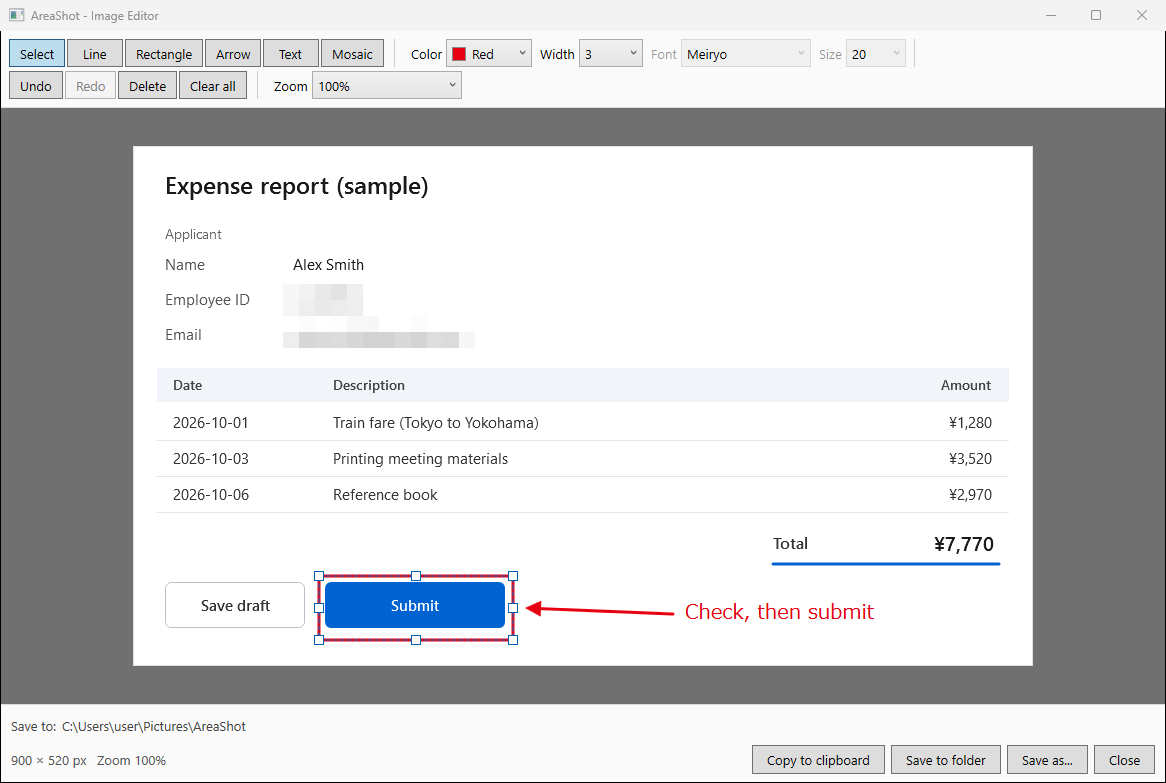
Capture an areaPress the shortcut (Ctrl+Alt+S by default) and drag over the area you want.
-
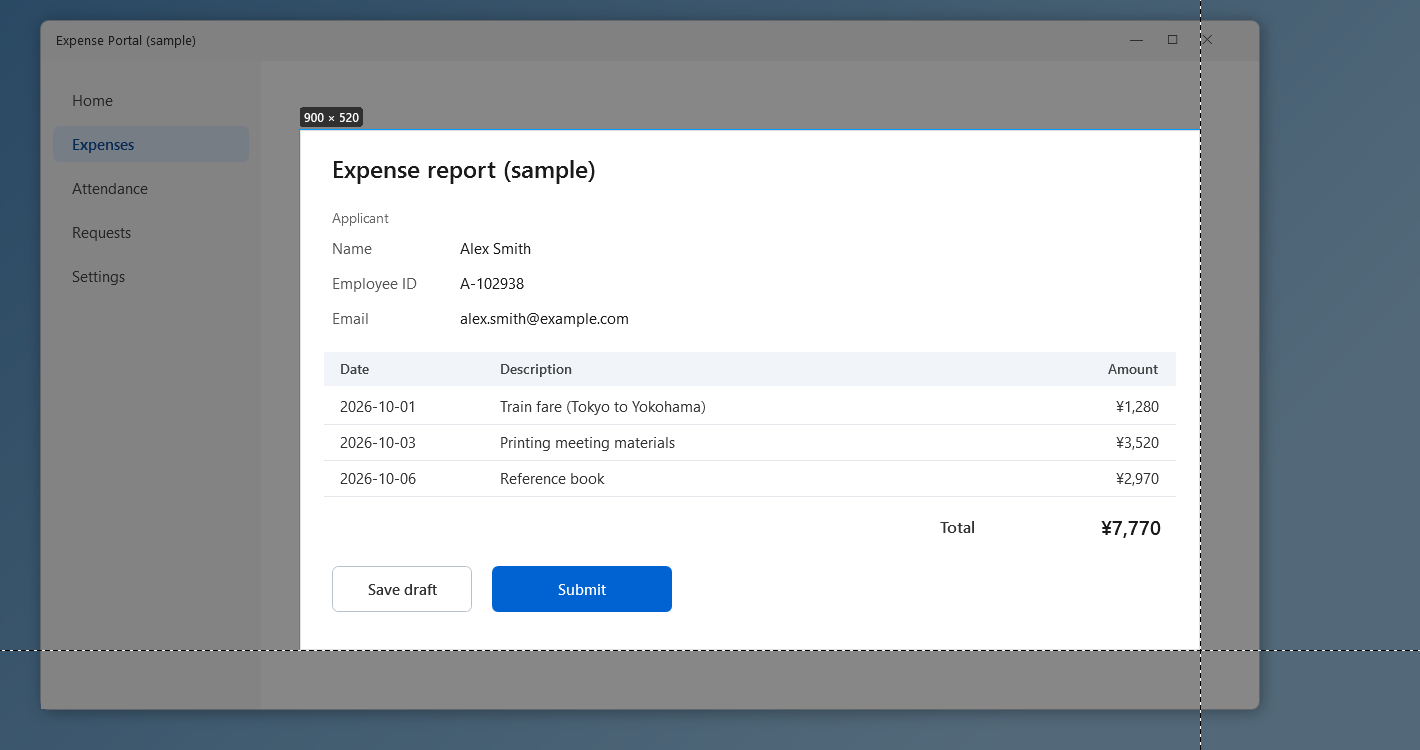
Mark it up if neededPoint things out with frames and arrows, and hide private details with mosaic.
-
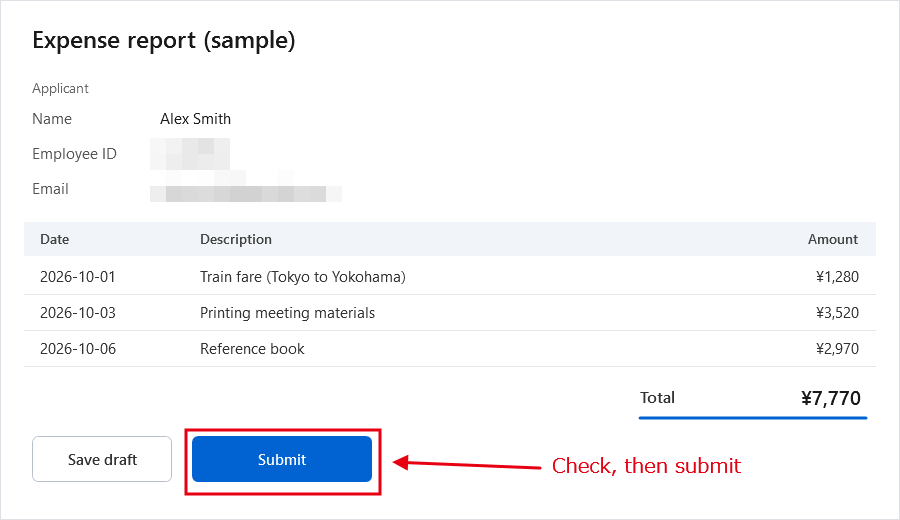
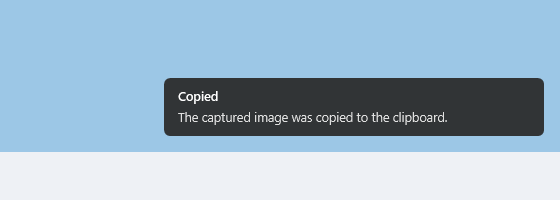
Copy and shareCopy to the clipboard and paste straight into Teams or a document. You can also save it as a file.
Design concept
AreaShot is built around a carefully chosen set of screenshot features for work and everyday use. Rather than packing in every possible feature, it focuses on making a daily task as quick as possible: capturing part of the screen and handing it to someone, or keeping it in a document.
Capture and share in seconds
Copy the capture to the clipboard or save it to a file right away.
Even faster with keys
Hold a key while releasing the mouse to copy, save or edit instantly.
Mark up before pasting into Teams
Add a frame, arrow or text before pasting into a chat or channel.
Just enough drawing for guides
Highlight parts of the screen, and hide information with mosaic. You can also save captures with sequential numbers in the order you take them, with a description of each step in the file name.
Features
- Capture a selected area with a shortcut (Ctrl+Alt+S by default). Works across multiple monitors with different scaling
- Copy the capture to the clipboard, or save it as PNG or JPEG (file names from a date-based template, sequential numbers, or sequential numbers with a description)
- Add lines, rectangles, arrows, text and mosaic in a simple editor, with undo and redo
- English and Japanese display (follows the Windows display language, or choose in Settings)
Requirements and availability
| OS | Windows 11 (64-bit) |
|---|---|
| Get it from | Microsoft Store |
| Languages | English, Japanese |
Recent updates
- The user guide opened from the app now uses the site's new address (
www.ja1bus.com). Features and behavior are unchanged.
Resources
Source code and license
The source code of this application is available on GitHub under the MIT License.