PromptPalette User Guide
Take a screenshot, press one shortcut, and your image request is ready in ChatGPT or Gemini.
PromptPalette attaches the image, switches the chat to image creation, and types your saved prompt. With auto-send on, it sends the request for you too.
- STEP 1Copy a screenshot
Win+Shift+S - STEP 2Open ChatGPT or Gemini and press
Ctrl+Shift+Y - STEP 3Image, image mode and your prompt are entered for you
- STEP 4Review and send, or let auto-send do it
Contents
What is PromptPalette?
PromptPalette is a Chrome extension for people who create images in ChatGPT or Gemini by giving the same instructions again and again: “turn this screenshot into a watercolor”, “make line art from this image”, “create a blog thumbnail based on this”.
Doing that by hand means pasting the image, opening the tools menu, choosing image creation, and pasting the prompt, every time. PromptPalette does all of that from a single shortcut or a click on its toolbar icon.

Where it helps and key features (also on the overview page)
Saved prompt presets
Save up to 20 prompts and pick one for each run, or set a default and skip the choice.
ChatGPT and Gemini
The same shortcut works on both sites. You can use one prompt for both or a separate prompt for each.
Clipboard or file
Use the image you just copied, or choose a PNG, JPEG or WebP file.
Review first, or auto-send
By default nothing is sent until you check it. Turn on auto-send per site to go straight to the result.
When is it useful?
PromptPalette is most useful when the image changes but the instructions stay the same. For example:
- Screenshots into illustrations. You capture part of a web page, slide or app and always ask for the same art style.
- Making materials. You turn photos or diagrams into line art, icons or coloring pages for documents and lessons.
- Thumbnails and social posts. You create a thumbnail in a fixed format and aspect ratio from a screenshot of each article or video.
- Comparing services. You send the same image and prompt to both ChatGPT and Gemini and compare the results.
- Long, carefully tuned prompts. You have multi-line prompts that you don’t want to retype or hunt down in a notes file.
Requirements
- Google Chrome 120 or later. This guide uses Windows key names; PromptPalette was developed and tested on Windows 11.
- You are signed in to ChatGPT and/or Gemini in Chrome, with an account that can create images. Image generation limits and plans are set by each service.
- No API key, extra software or account for PromptPalette is needed.
Install
- Open the PromptPalette page in the Chrome Web Store and click Add to Chrome.
Open in Chrome Web Store - Click the puzzle-piece Extensions icon in the Chrome toolbar and pin PromptPalette so its icon is always visible.
- Reload any ChatGPT or Gemini tabs that were already open.
First-time setup
- Open Settings. Right-click the PromptPalette icon and choose Options. You can also click Settings in the panel that appears during a run.
- Choose the display language. Language / 表示言語 offers Auto, English and 日本語. Auto follows Chrome’s language.
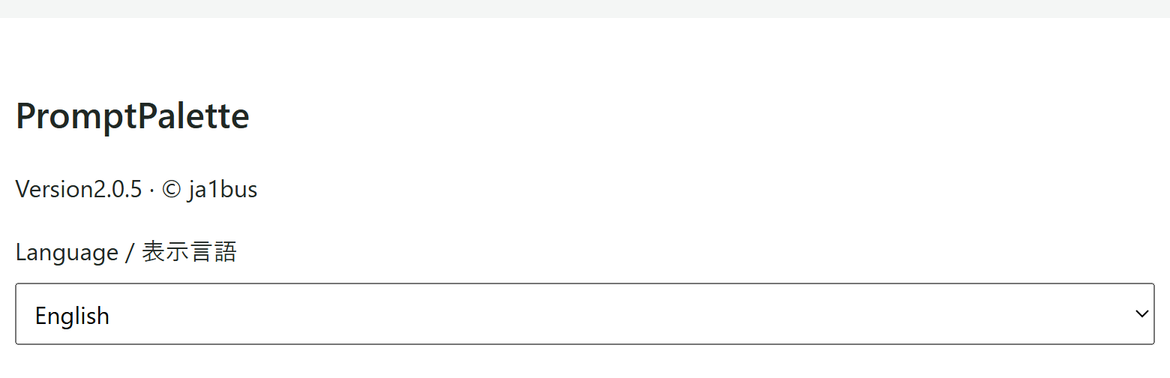 (open full-size image)
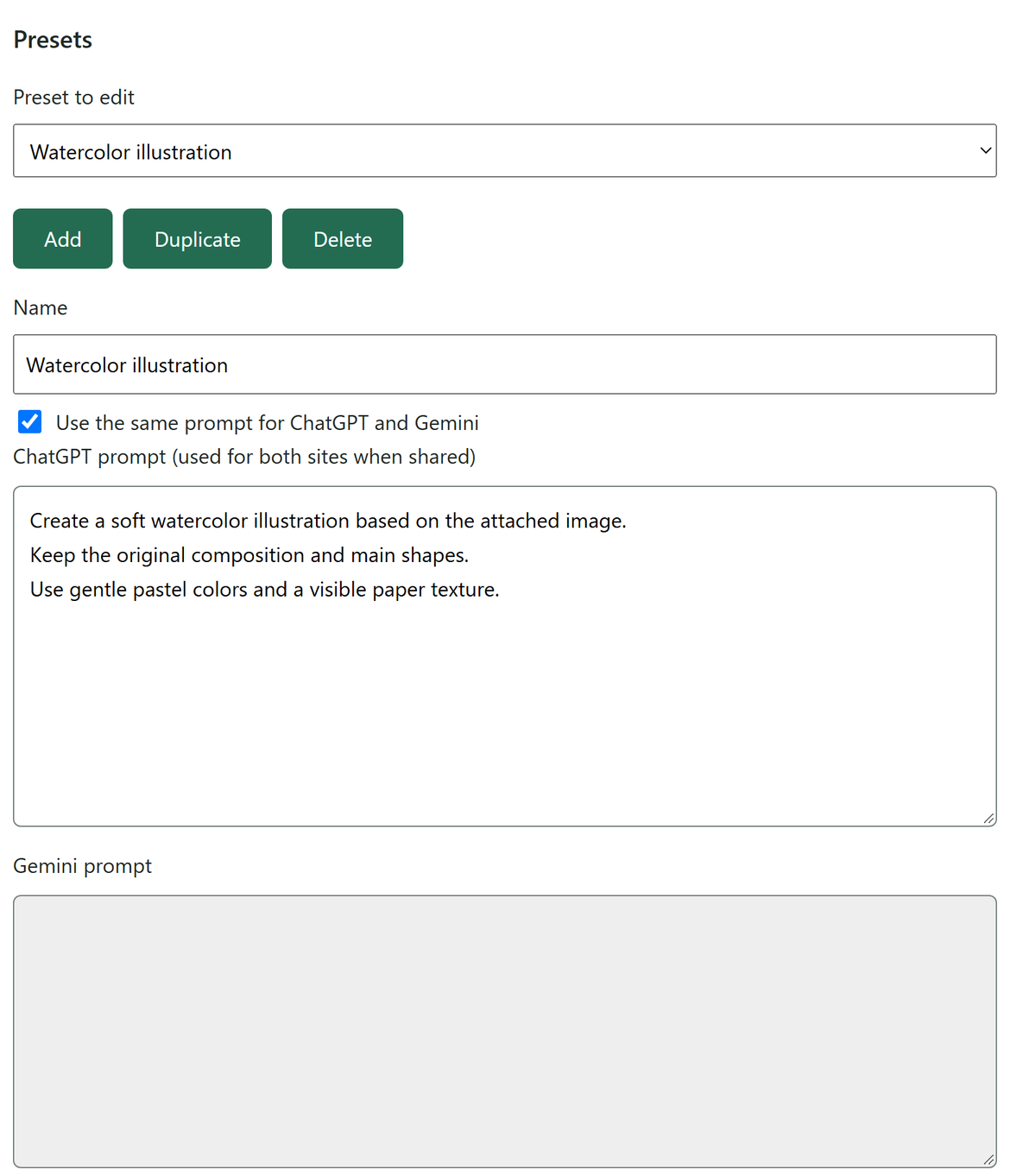
 - Write your first prompt. The first preset is named “Default” and is empty. Give it a name and type the prompt you always use. Line breaks and blank lines are kept exactly.
 (open full-size image)
A preset that uses the same prompt for ChatGPT and Gemini. - Click Save all settings at the bottom of the form. Nothing is applied until you save.
- Check the shortcut. Click Open keyboard shortcut settings (or go to
chrome://extensions/shortcuts) and confirm that Run with a clipboard image has Ctrl+Shift+Y. If another extension already uses it, Chrome leaves it blank, so assign any free key.
Use it in ChatGPT
This is the default flow, with auto-send off. You review everything before sending.
- Copy an image. Press Win+Shift+S and select an area, or copy an image from anywhere. Exactly one PNG, JPEG or WebP image up to 20 MiB is supported.
- Open an empty ChatGPT chat. The message box must be empty, with no attachments, and ChatGPT must not be generating a reply.
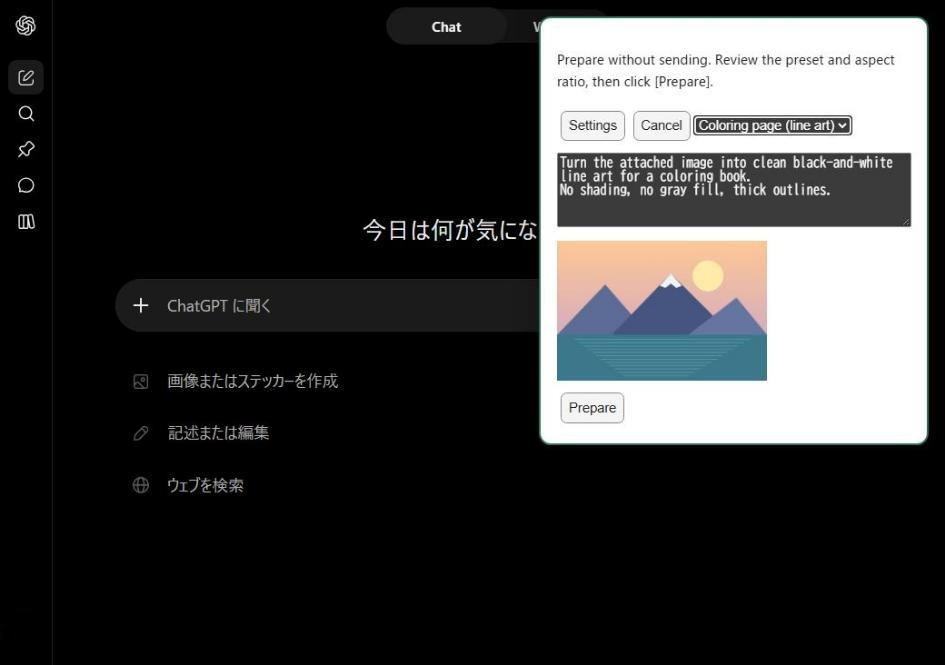
- Press Ctrl+Shift+Y or click the PromptPalette icon. A panel appears at the top right with your presets, the prompt that will be used and a preview of the image.
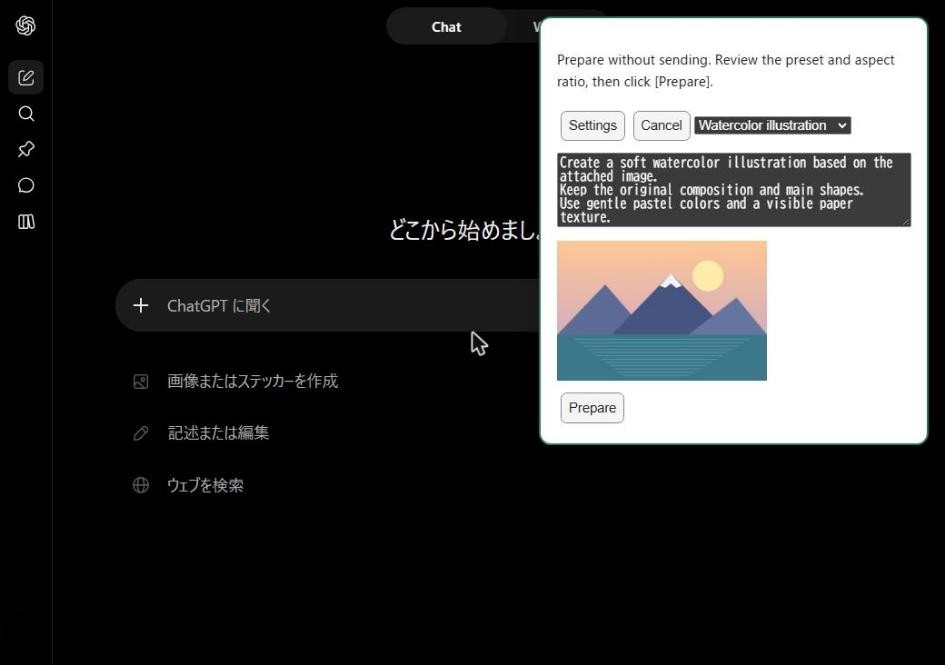 (open full-size image)
Choose a preset if needed, then click Prepare. The prompt preview is read-only; edit prompts in Settings. - Click Prepare. PromptPalette works through six steps (1/6–6/6): it checks the page, gets the image, attaches it, waits for the upload, selects Create image and enters the prompt. Don’t type in the message box while it runs.
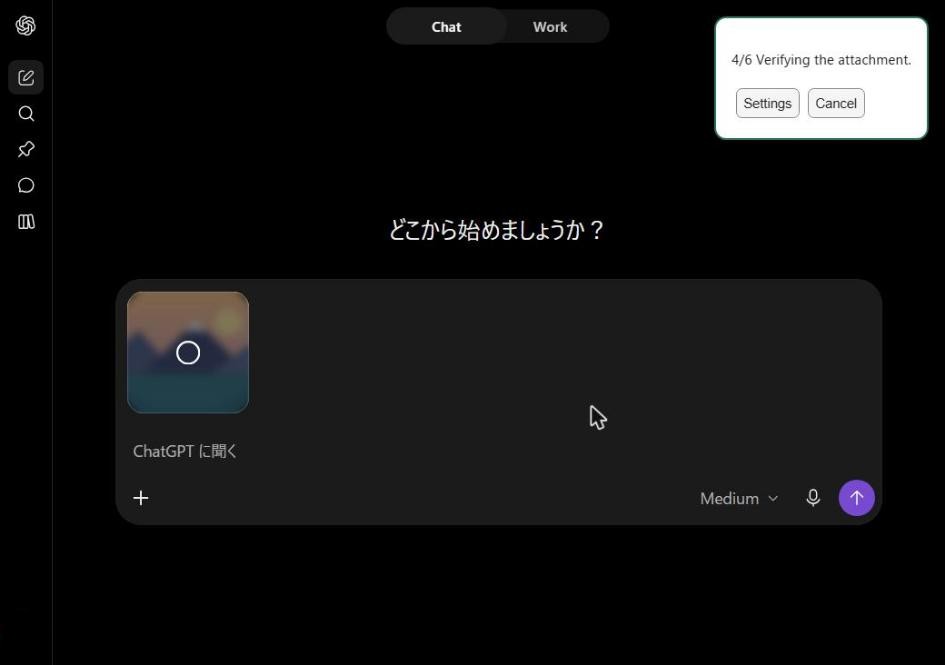 (open full-size image)
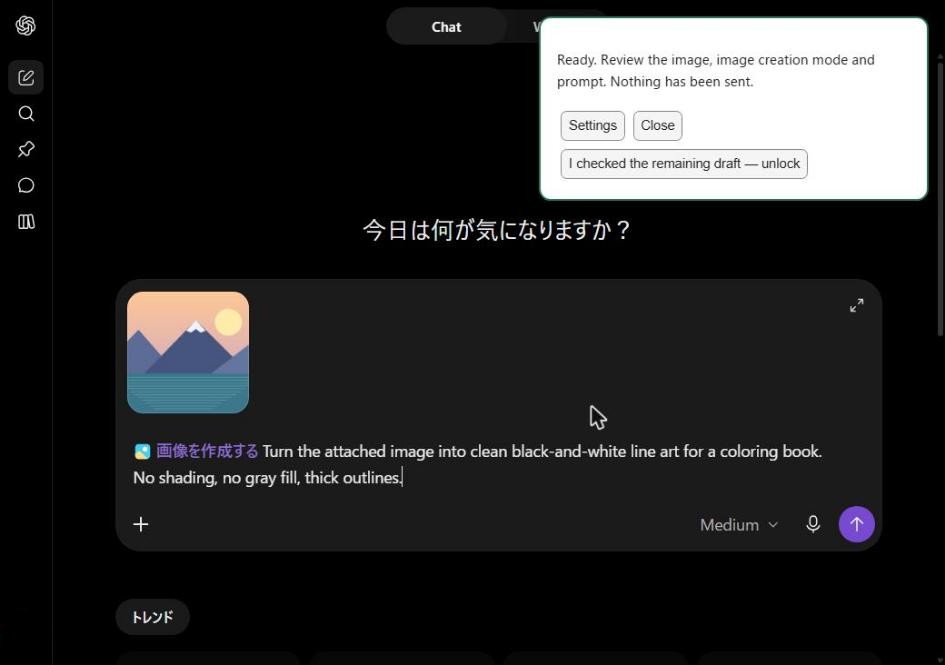
Progress is shown in the panel. - Review and send. When the panel says Ready, the image, the Create image mode and your prompt are in place. Change anything you like, then send it yourself.
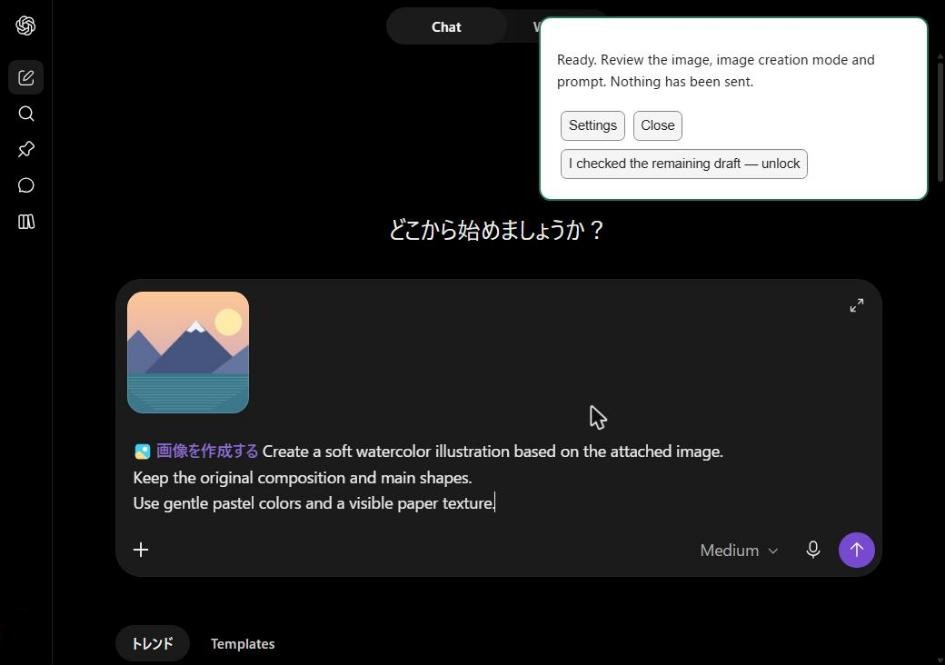 (open full-size image)
Ready. Nothing has been sent yet.
Use it in Gemini
Gemini works the same way. The panel also shows an aspect ratio selector, filled in from the preset. Changing it in the panel affects only this run.
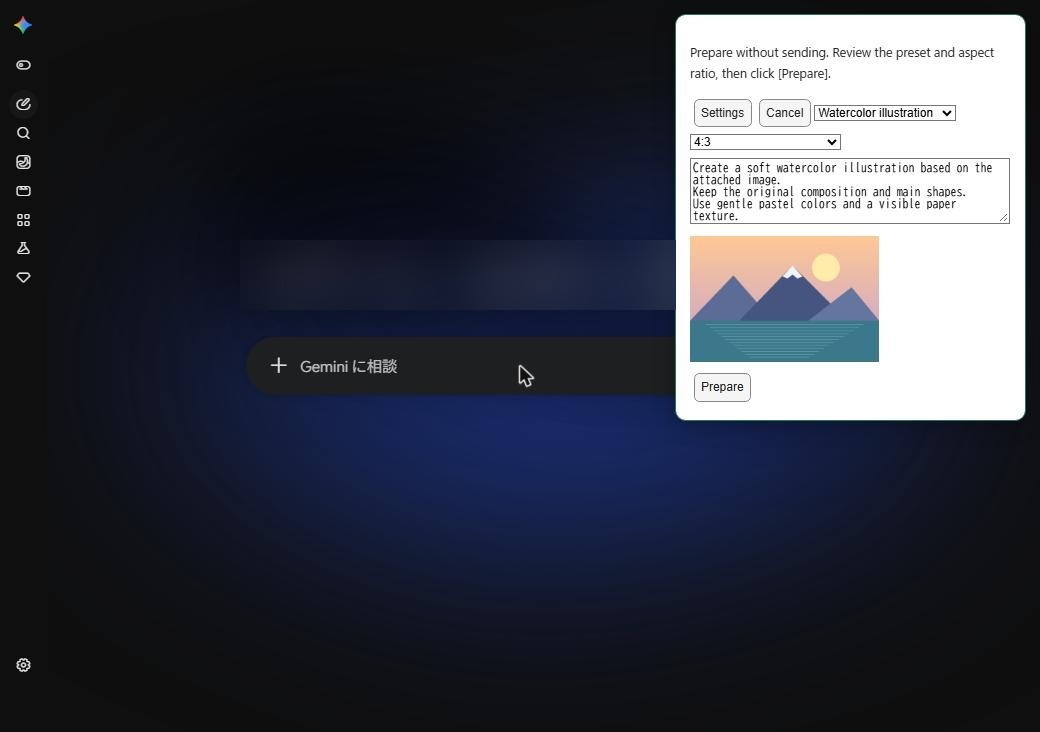 (open full-size image)
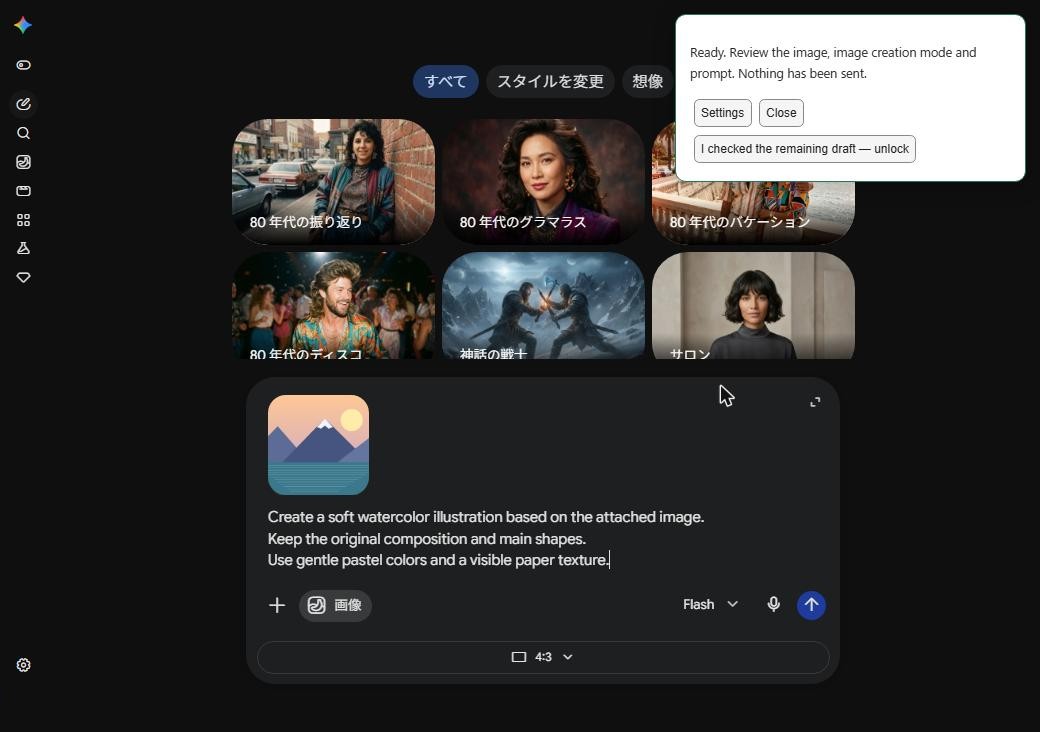 (open full-size image)
- Available ratios: Unspecified, 1:1, 9:16, 3:4, 4:3, 16:9.
- Unspecified leaves Gemini’s ratio control untouched. If a ratio is still selected from earlier, it stays.
- The ratio applies to Gemini only. ChatGPT ignores it.
Auto-send: from screenshot to result in one step
If you always use the same preset, turn on auto-send. PromptPalette then skips the panel, uses the default preset, and sends the request once all checks pass.
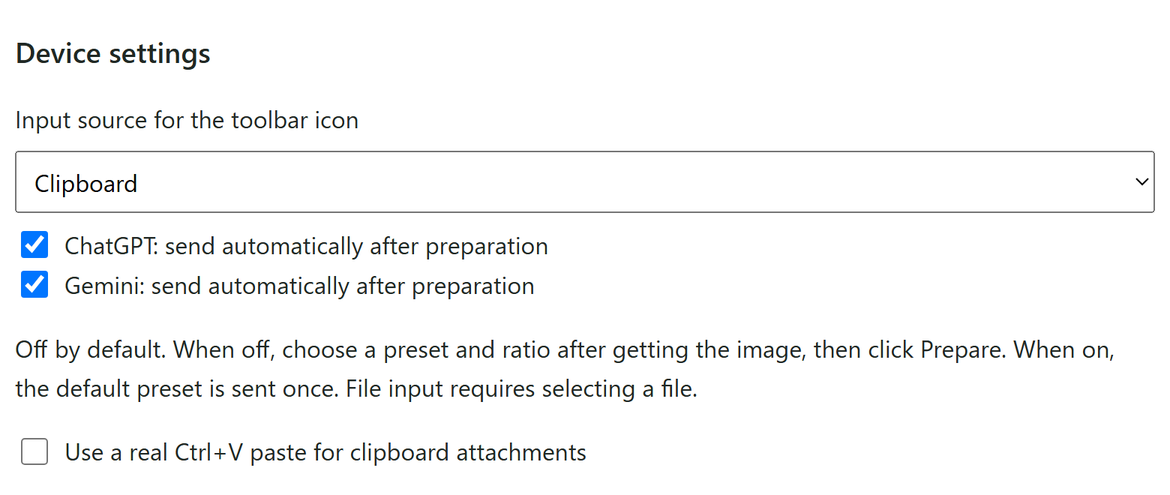
- In Settings, under Device settings, check ChatGPT: send automatically after preparation and/or Gemini: send automatically after preparation, then click Save all settings.
 (open full-size image)
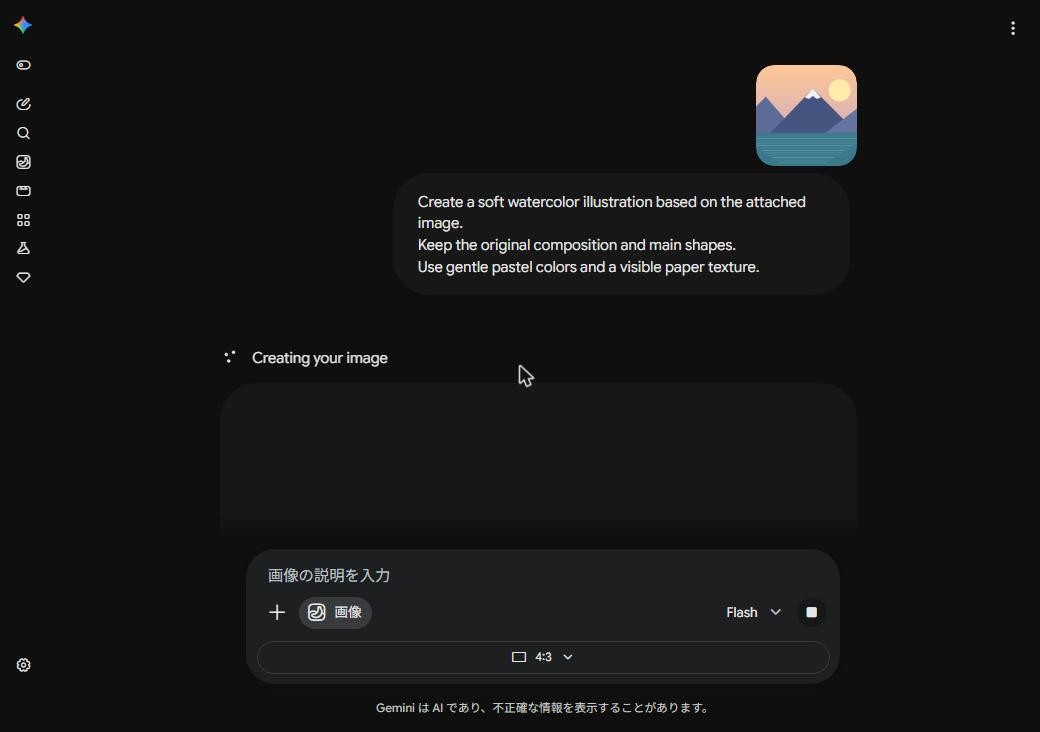
 - Copy an image, open the chat and press the shortcut. The image is attached, image mode is selected, the prompt is entered and the request is sent.
 (open full-size image)
Sent automatically. Gemini starts creating the image. 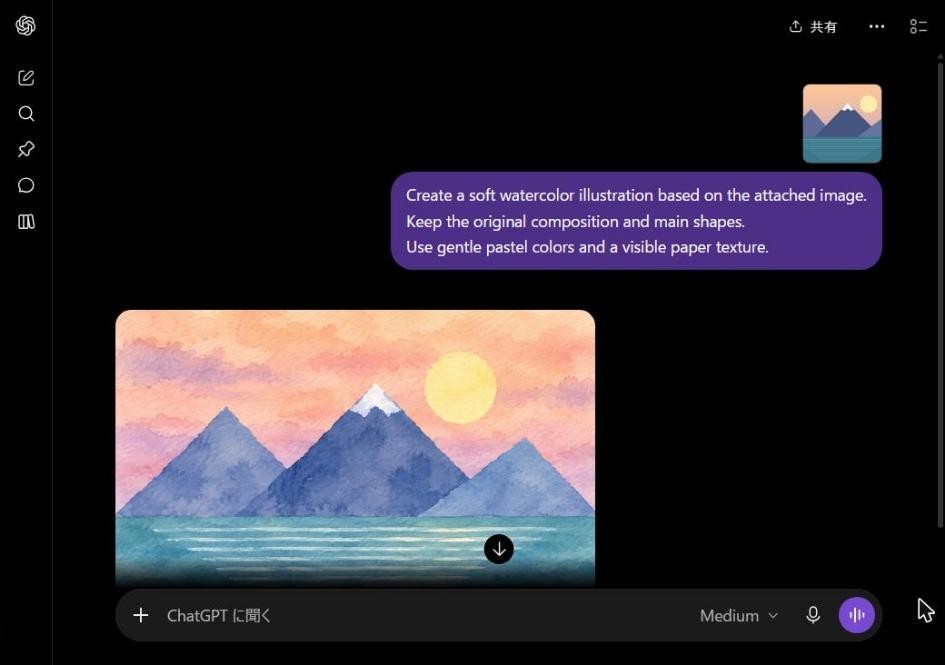 (open full-size image)
The generated result in ChatGPT.
- Auto-send is off by default and is set separately for each site and each PC. It is never synced.
- PromptPalette clicks Send exactly once. It never retries, even if it cannot confirm the result.
- Every image request uses your ChatGPT or Gemini allowance as usual. Try it with auto-send off first.
- To check with auto-send off: clear both auto-send checkboxes in Settings, click Save all settings and run in an empty chat. It is working if the panel says "Ready. … Nothing has been sent." and the composer has the image, image creation mode and the prompt.
- If a sync update is waiting for your review, PromptPalette stops without sending.
Use an image file instead of the clipboard
To start from a file on your PC, either
- assign a key to Choose an image file and run at
chrome://extensions/shortcuts(unassigned by default), or - set Input source for the toolbar icon to Image file picker in Settings, so that clicking the icon opens a file picker.
Choose one PNG, JPEG or WebP file up to 20 MiB. If Chrome doesn’t open the picker right away, click Choose image file in the panel. Canceling the picker ends the run without changing the chat. The file name doesn’t matter, and the file and its path are never stored.
 (open full-size image)
 (open full-size image)
Share presets across your PCs
You can share presets between PCs that use Chrome with the same Google account. Sharing is off by default and is controlled in Sharing with other PCs in Settings.
- Shared: presets (names, prompts, ratios) and the default preset only.
- Not shared: Device settings (input source, auto-send, Ctrl+V), display language, images, diagnostics and this PC's backups. It does not sync your whole PC or Chrome settings.
- The Share presets with my other PCs switch is saved on this PC as soon as you click it (no need for Save all settings). Turning it on does not send anything.
- Save all settings saves presets and Device settings. While sharing, preset changes are also sent to your other PCs.
What the status means
| Status | Meaning | Main action |
|---|---|---|
| Sharing is off. | Presets are saved on this PC only. | Turn the switch on |
| Waiting for presets from your other PCs. This PC does not send anything yet. | This PC has not joined yet. Anything you save while waiting stays on this PC. | Check for updates; on the first PC, Start sharing with this PC's presets |
| Presets from another PC have arrived. … nothing was replaced automatically. | This PC also has presets, so it asks which to use. | Use the received presets / Keep both |
| Sharing presets with your other PCs. | Normal state. | Edit and Save all settings |
| Changes on this PC have not been sent to your other PCs yet. | Sending failed, or restored presets exist only on this PC. | Send unsent changes |
| An update needs your review. | An update was not applied automatically (overlapping edits, many deletions, etc.). | Choose one of the options shown |
The page also shows Last imported, Last sent from this PC and Last checked. Last sent is when this PC wrote to Chrome sync storage; it does not confirm that other PCs received it. PromptPalette never shows a "sync complete" message that would promise delivery to every PC.
Start sharing on your first PC
- On the PC that has your presets, open Settings, check the presets and click Save all settings.
- Turn on Share presets with my other PCs. The status shows "Waiting for presets from your other PCs."
- Click Start sharing with this PC's presets and confirm. You cannot start if no preset has a prompt. If shared data from another PC has already arrived, it does not start and asks you to review that data instead.
- When the status shows "Sharing presets with your other PCs.", this PC is ready.
Add another PC
- Install PromptPalette on the new PC and turn on Share presets with my other PCs in Settings. This PC does not send anything.
- Wait for presets from your other PCs. How long it takes depends on Chrome sync. Check for updates shows whether they have arrived.
- If this PC still has only the initial empty preset, the received presets are imported and the PC joins sharing.
- If you already entered presets on this PC, nothing is replaced automatically. Choose Use the received presets (this PC's presets are kept in backups) or Keep both (adds this PC's presets to the received ones and shares the result).
You can edit and save presets while waiting. They stay on this PC and are not erased by presets that arrive later.
If presets do not arrive
- Is every PC signed in to Chrome with the same Google account, with Extensions turned on in Chrome sync?
- Is PromptPalette 3.0.0 or later on every PC? (Check at
chrome://extensions.) - Has one PC started sharing? If none has, nothing will arrive.
- Check for updates does not force a download from Google. It only checks what has reached this PC. "No new updates have reached this PC" can appear even if a recent change from another PC is still on its way. Check again later.
- If you are in a hurry, move presets with Export settings / Import settings file.
Everyday editing, saving and receiving
- Edit presets on any PC and click Save all settings; PromptPalette writes them to Chrome sync storage for your other PCs. A successful write is not the same as arrival on other PCs.
- Saving only Device settings, or saving unchanged presets, sends nothing.
- Changes from other PCs are checked at Chrome startup, when you open Settings, before a run and when Chrome receives an update. Safe updates are imported automatically, and the previous presets are kept in backups.
- If an update arrives while you are editing in Settings, your screen is not changed. When you save, you are asked first; if you continue, the received presets are kept in backups.
- Turning sharing off keeps this PC's presets and does not delete shared presets on other PCs.
Updates that need review (simultaneous edits, offline edits, many deletions)
In these cases, nothing is applied automatically; both the current and the received presets are kept and you are asked to choose. Auto-send does not run while such an update is waiting.
| Message | What happened | Options |
|---|---|---|
| Changes from another PC overlap with changes on this PC. | Two PCs edited at the same time, a PC edited while offline, or an update arrived while this PC had unsent changes | Use the received version / Use this PC's version / Keep both |
| An update that empties every prompt / removes many presets has arrived. | All prompts become empty, 3 or more (or half or more) presets disappear, or many prompts are cleared | Apply this update / Re-share this PC's presets |
| An update arrived from a PC using an old version of PromptPalette. | Presets were changed on a PC running 2.1.0 or earlier | Apply this update / Ignore |
- If you intentionally removed many presets or emptied prompts, click Apply this update on each other PC. The PC where you save also asks before saving.
- Keep both copies presets whose content differs and marks them "(other PC)". It is not available if the total would exceed 20 presets.
- The version you did not choose is kept in this PC's backups.
- An older update arriving late never rolls back newer presets. Partially received or unreadable data is never used.
Send unsent changes
If sending fails (capacity exceeded or Chrome could not write), the change is saved on this PC and the status shows "Changes on this PC have not been sent to your other PCs yet." Wait a while and click Send unsent changes. Before sending, PromptPalette checks for updates from other PCs; if one has arrived, it does not overwrite it and shows it as an update that needs review.
Restore from a backup (this PC only)
- Open Advanced (restore, replace, clean up).
- In Version to restore, choose by date, reason and number of presets. Up to 20 earlier versions are kept before overwrites and received updates, with up to 6 more reserved for important moments (before starting, joining or replacing). Identical versions are kept only once.
- Click Restore the selected version on this PC. Only this PC changes. While sharing, it becomes an unsent change and is not sent to other PCs until you click Send unsent changes.
Replace shared presets with this PC's presets
Advanced → Replace shared presets with this PC's presets replaces the shared presets on your other PCs with this PC's full set. Before it runs, it shows the number of presets on this PC and in the current shared set, how many presets will disappear, and how many waiting updates will be kept in backups instead of imported. Other PCs ask before applying if many presets are removed, and each PC keeps the previous presets in its backups. You do not need this for normal editing.
Updating from 2.1.0 or earlier
Version 3.0.0 replaces the old sync method, in which every PC overwrote the same storage, with one where each PC writes its own area and the receiving PC checks updates before applying them. Shared presets do not move automatically between PCs on old versions and PCs on 3.0.0. Update in this order:
- Before updating, click Export settings on each PC and keep the JSON file.
- Update PromptPalette to 3.0.0 on every PC (the Chrome Web Store version updates automatically; check the version at
chrome://extensions). Updating does not reset presets and does not send anything by itself. - Do not edit presets on PCs still running the old version until every PC is updated. Edits made there appear on 3.0.0 PCs as "An update arrived from a PC using an old version of PromptPalette" and can be applied after review.
- After updating, edit presets on one PC and click Save all settings; the change reaches your other PCs with the new method. PCs that were sharing in 2.1.0 are treated as already joined.
- Once every PC is updated, you can optionally free space with Advanced → Clean up old sync data, which deletes the sync data used by old versions.
The "previous presets" kept by 2.1.0 are carried over to the 3.0.0 backups as "previous backup from old version" (protected). Presets lost under earlier versions may be found there, but recovery cannot be guaranteed.
Settings reference
Presets
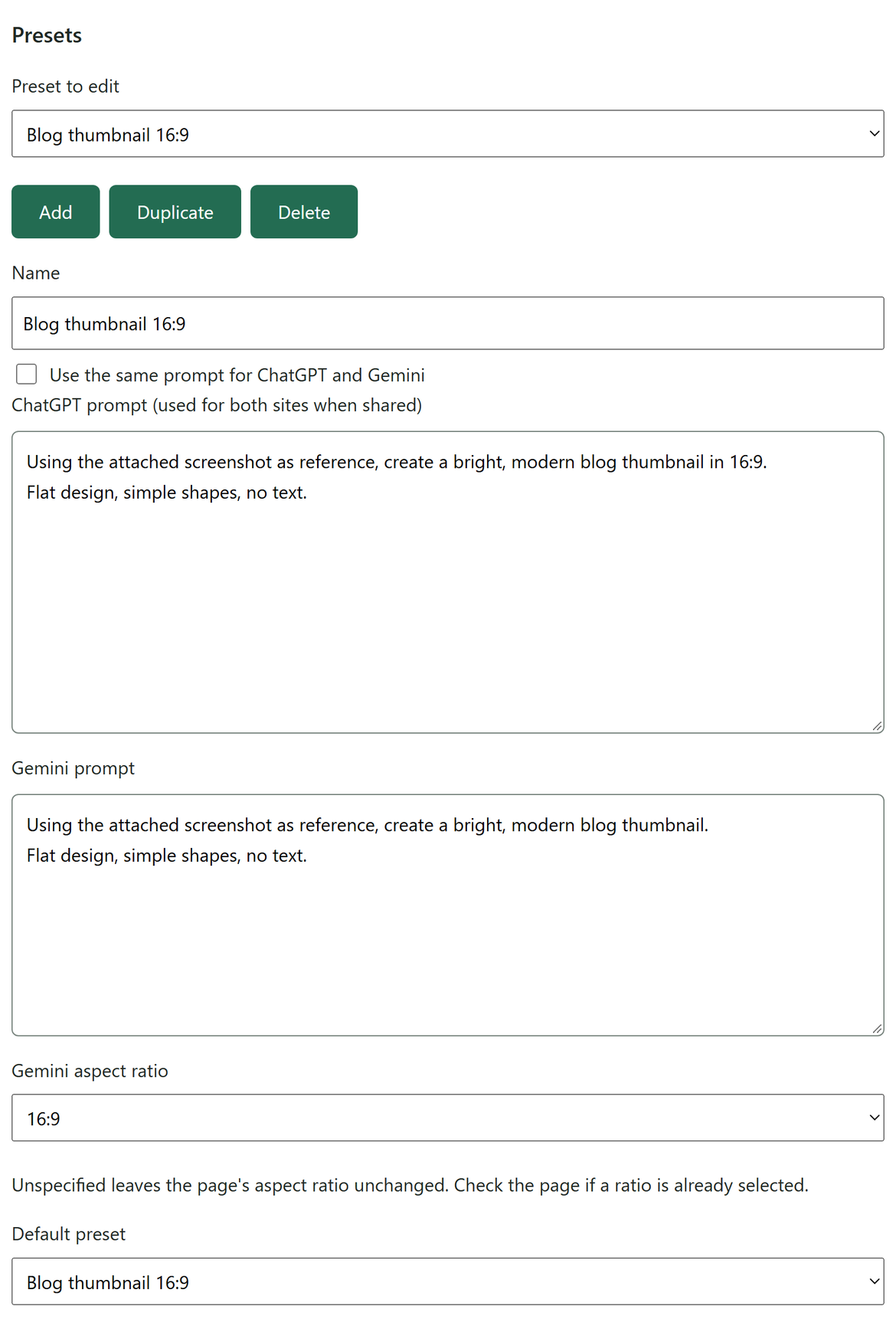 (open full-size image)
| Item | What it does |
|---|---|
| Preset to edit / Add / Duplicate / Delete | Select, create, copy or remove presets. Up to 20. |
| Name | Shown in the run panel. Up to 80 characters. |
| Use the same prompt for ChatGPT and Gemini | On: the ChatGPT prompt is used on both sites. Off: each site uses its own prompt. A saved Gemini prompt is kept even while it is unused. |
| ChatGPT prompt / Gemini prompt | Up to 20,000 characters each. Line breaks and blank lines are kept; leading and trailing spaces are removed at run time. An empty prompt can be saved but not run. |
| Gemini aspect ratio | Unspecified, 1:1, 9:16, 3:4, 4:3 or 16:9. |
| Default preset | Selected first in the panel, and used by auto-send. |
Device settings
These apply only to the current PC and are never synced.
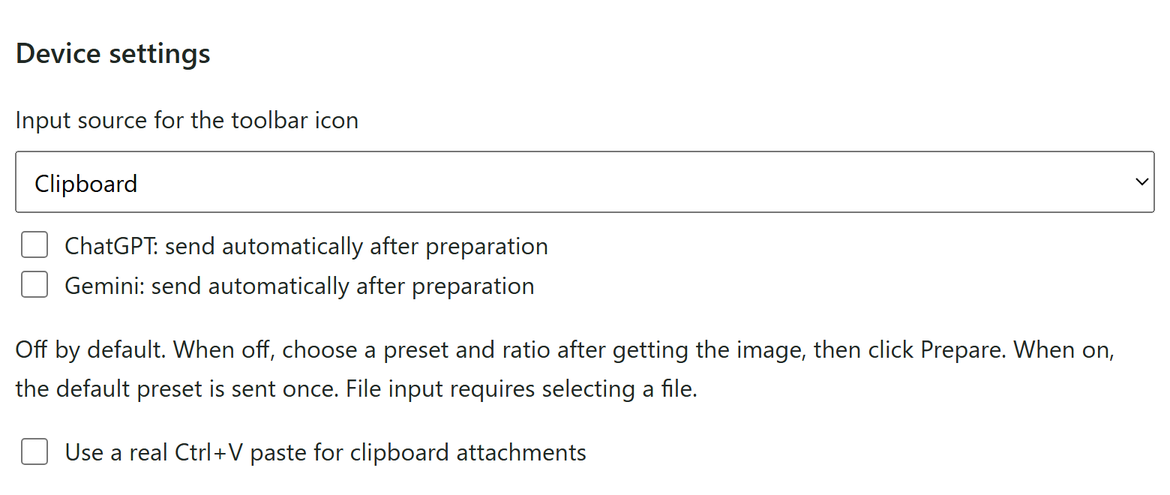 (open full-size image)
| Item | What it does |
|---|---|
| Input source for the toolbar icon | Clipboard or Image file picker. The two keyboard shortcuts always use their own source. |
| ChatGPT / Gemini: send automatically after preparation | Turns auto-send on for that site. Off by default. |
| Use a real Ctrl+V paste for clipboard attachments | Use this when a site doesn’t accept the automatic attachment. The panel shows Wait for paste; click it and press Ctrl+V once in the message box. PromptPalette then continues with image mode and the prompt. |
Sharing with other PCs
For the switch, status and actions, see Share presets across your PCs.
Backup and migration
- Export settings saves
promptpalette-settings.json, which includes your prompts. Keep it somewhere safe, and always export before removing or reinstalling the extension. - Import settings file loads a file into the editor only. Click Save all settings to apply. Auto-send is turned off after an import for safety. While sharing, saving also sends the presets to your other PCs (you are asked first).
- Files exported by earlier versions (format version 2) can be imported. Files in a newer format are not imported; you are asked to update instead.
Keyboard shortcuts
| Command | Default | Input |
|---|---|---|
| Run with a clipboard image | Ctrl+Shift+Y | Clipboard |
| Choose an image file and run | Not assigned | File picker |
| Toolbar icon | — | As set in Input source for the toolbar icon |
Change them at chrome://extensions/shortcuts. Shortcuts work only while Chrome is the active window.
Diagnostics
Shows the latest run message. Show diagnostics displays the details, and Copy diagnostics copies them to the clipboard. They include only the version, site, stop stage, error code, number of upload-field candidates, time, and sync state and history. Images, prompts, preset names and chat URLs are never included. Copying replaces your clipboard contents, including any copied image, so you are asked first.
Version and license
The top of the settings page, under the title, shows the version and links to the MIT License and the Source code (GitHub) (3.0.1 and later).
Progress and safety
PromptPalette is designed never to overwrite or lose anything you typed.
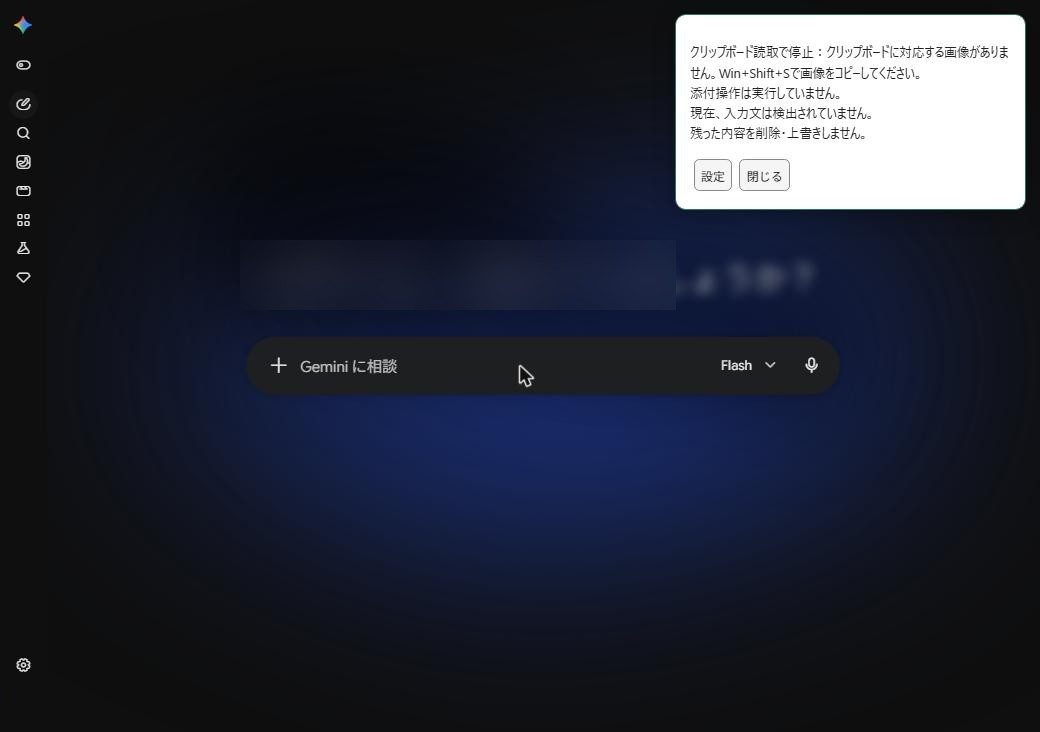
- Checks before starting. It stops without changing the chat if the message box already has text or attachments, another tool is selected, or a reply is being generated.
- Stops on unexpected changes. If you edit the message box, switch chats, or the site layout changes during a run, it stops and leaves what is there.
- No automatic retries. Attachments and sending are never repeated automatically.
- Attaching is tried only once: if a run fails after an attachment was attempted, PromptPalette does not attach again by another method.
- Runs that stopped before doing anything can be repeated right away: for example, when the upload field could not be identified, the panel says "No image was attached, no text was entered and nothing was sent." and no lock is set.
- Details: after an error, this panel button shows the error code, stop stage, version and whether attaching or sending happened. Use it to check what caused the error.
- Panel buttons: Settings opens Settings, Cancel stops the remaining steps (it cannot undo an upload or a send that already happened), and Close hides the panel.
- “I checked the remaining draft — unlock”. After a run stops, or after you prepare without sending, the chat stays locked so that nothing is attached twice. Check and clear the message box yourself, then click this button. After a successful “prepare without sending”, you can also simply run again once the box is empty.
 (open full-size image)
Troubleshooting
Nothing happens when I press Ctrl+Shift+Y
Another extension or app may already use that key. Open chrome://extensions/shortcuts and assign a free key to Run with a clipboard image. Shortcuts work only while Chrome is the active window, with the ChatGPT or Gemini tab selected. You can always click the toolbar icon instead.
“Focus a ChatGPT or Gemini chat tab before running.”
PromptPalette works only on chatgpt.com and gemini.google.com. Switch to a regular chat in one of them and run again.
“No supported image is on the clipboard.”
Copy one image (PNG, JPEG or WebP, up to 20 MiB) right before running, for example with Win+Shift+S. Copied text or several files are not accepted.
“Could not read the clipboard” or clipboard access was denied
Click Read image and continue in the panel while the chat tab is in front. If that is also denied, click Wait for paste and press Ctrl+V once in the message box.
“The composer already contains text or attachments.”
PromptPalette never overwrites an existing draft. Send or clear what is in the message box, then run again. If the panel offers I checked the remaining draft — unlock, click it after clearing the box.
“Could not attach the image automatically.”
PromptPalette could not reliably identify where to attach the image in ChatGPT's composer, so it stopped without attaching anything. If the panel says "No image was attached, no text was entered and nothing was sent.", you can simply run again.
- Check that no text or image remains in the composer, reload the ChatGPT page, and run again.
- If that does not help, turn on Use a real Ctrl+V paste for clipboard attachments in Settings and click Save all settings. From then on, click Wait for paste in the panel and press Ctrl+V once in the composer; image mode and the prompt follow automatically.
- The Ctrl+V method is not available when running from an image file. Copy the image to the clipboard and run from there, or attach it manually with ChatGPT's attach button.
If it continues, the error code under Details in the panel shows where it stopped and why.
The image is attached but the run stops, or times out
Your connection may be slow, or the site may not have accepted the attachment. Check the message box and remove the attachment if needed, then try again. If it keeps failing on the clipboard route, turn on Use a real Ctrl+V paste for clipboard attachments in Settings.
After auto-send, “the message could not be confirmed in the conversation automatically”
PromptPalette clicked Send, but could not confirm in time that the image and prompt appeared in the conversation. This is a notice, not an error (the extension icon shows “?”), and nothing is sent again automatically. Check in the conversation that the message was sent and that image creation started. If it was not sent, check the message box and send it yourself. If you see this every time, the site’s layout may have changed; please check for an update.
“Image creation mode is unavailable.”
Your ChatGPT or Gemini account may not have image creation right now (plan, region or usage limit). Check on the site that you can choose image creation manually.
It stopped after ChatGPT or Gemini changed their design
PromptPalette looks for specific buttons and labels on each site. When a site changes its layout, PromptPalette stops safely rather than guessing. If reloading the page does not help, check where it stopped with Details in the panel or Show diagnostics in Settings, and check for an update.
Sharing is on, but presets do not reach another PC
See If presets do not arrive. Check for updates only looks at what has reached this PC; it does not force a download from Google. "No new updates have reached this PC" reflects only what this PC can see.
Presets disappeared or became empty after sharing
In 3.0.0, updates that empty every prompt or remove many presets are not applied automatically; you are asked first. If one was applied by mistake, use Restore from a backup on this PC, then Send unsent changes to restore it on your other PCs. Other PCs can also restore from their own backups.
I want to remove or reinstall the extension
Removing it deletes this PC's presets and backups. Save a JSON file with Export settings first. After reinstalling, turn sharing on and use the received presets, or import the JSON file.
Privacy and permissions
- Images are handled only in the open ChatGPT or Gemini tab during a run and are never stored.
- PromptPalette has no server of its own. Your image and prompt go only to the ChatGPT or Gemini chat you are using, under that service’s terms.
- Settings and backups are stored in Chrome on your PC. When sharing is on and you start sharing or save a change, presets and information used to check updates (a random per-PC identifier, update IDs, a hash, creation time and version) are also stored in Chrome sync on your Google account.
| Permission | Why it is needed |
|---|---|
activeTab | Temporary access to the tab where you pressed the shortcut or icon. No access to other sites or tabs. |
scripting | Runs PromptPalette’s own script in that tab to attach the image and enter the prompt. |
clipboardRead | Reads the copied image when you run it from the clipboard. |
storage | Saves your presets and settings (and Chrome sync, only if you turn it on). |
Full details: Privacy policy.