
Plain Clip User Guide
A lightweight Windows tool that pastes copied text without formatting and lets you quickly reuse recently copied text.
- STEP 1Copy text as usual
Ctrl+C - STEP 2Press Left Shift twice where you want to paste
Shift Shift - STEP 3The text is pasted without formatting
Open contents
What is Plain Clip
Plain Clip is a clipboard tool focused on one thing: reusing a little text quickly, as plain text. When you paste text copied from an Outlook email or a web page, the font, color and size often come along. With Plain Clip, only the text is pasted.
It stays in the notification area. Press Left Shift twice to paste what you just copied without formatting. Recently copied text (10 items by default) can be pasted again from a list. It deliberately leaves out snippets, search and sync.
Requirements and availability
| OS | Windows 11 (64-bit) |
|---|---|
| Languages | English and Japanese (follows the Windows display language; you can also choose one in the settings) |
| Get it from | Install Plain Clip for free from the Microsoft Store. |
Starting and the tray icon
When you start Plain Clip, its icon appears in the notification area (system tray) at the bottom right of the screen and it waits in the background. The first time, a "How to use" window shows the basic operations.
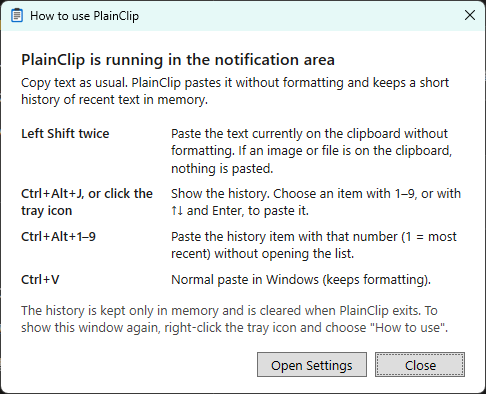 (open the image at full size)
| Action | Result |
|---|---|
| Click the icon | Shows the history list. |
| Right-click the icon | Shows the menu (Show history / Clear history / How to use / Settings... / Reset key monitoring / Exit). |
| Start it again | If it is already running, it shows the How to use window instead of starting a second copy. |
If you cannot find the icon, look inside the "^" (hidden icons) on the taskbar.
Paste as plain text
- Copy text as usual in an email, a web page and so on (Ctrl+C).
- Put the cursor where you want to paste, and quickly press the left Shift key twice.
- The text is pasted without fonts, colors or other formatting.
What is pasted is the text on the clipboard right now. If you copied an image or a file after the text, nothing is pasted and a short notice appears, so older text is never pasted by surprise. To use older text, pick it from the history list or with a number shortcut.
 (open the image at full size)
| On the clipboard | When you press Left Shift twice |
|---|---|
| Text (including formatted text) | Pasted without formatting. |
| Both an image and text, such as Excel cells | The text is pasted. |
| Only an image, a file, or nothing | Nothing is pasted and a notice appears. |
| Something copied from a password manager | Pasted (not kept in the history). |
- In the settings you can change the key to Right Shift, Right Ctrl or Left Ctrl, or use a shortcut instead.
- It does not react if you press another key or a mouse button between the two presses, or if you hold the key down (normal typing such as Shift+A does not trigger it).
- The usual Ctrl+V still pastes with formatting.
Paste from the history
Plain Clip remembers recently copied text as a list (10 items by default). Click the tray icon, or use the shortcut you set in the settings, to open the list.
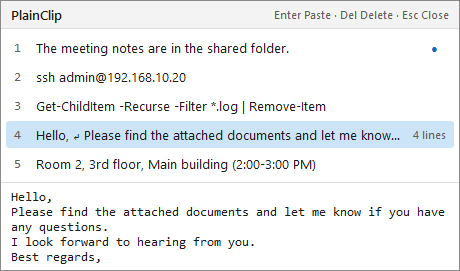 (open the image at full size)
- Press 1-9 to paste that item immediately. You can also select with ↑↓ and press Enter, or click an item.
- Items are numbered in the order you copied them (1 is the newest). Pasting from the history does not change the order.
- When you select multi-line or long text, the beginning of it is shown below the list.
- Delete removes the selected item, and Esc closes the list. Right-click for Paste, Copy to clipboard and Delete.
- When there is no window to paste into (for example, when you opened the list from the tray), the selected text is copied to the clipboard as plain text. Then paste it with Ctrl+V.
The history is kept only in memory while Plain Clip is running and is cleared when it exits. It is never saved to disk. You can also clear it with "Clear history" in the tray menu.
Number shortcuts
You can paste a history item directly with a modifier plus a number, without opening the list. For example, with Ctrl+Alt, Ctrl+Alt+1 pastes the newest item and Ctrl+Alt+2 the second one. The numbers match the history list.
- They are off by default. Choose Ctrl+Alt, Alt+Shift, Ctrl+Shift or Ctrl+Alt+Shift under "Number shortcuts" in the settings.
- Even after you copy an image, 1 pastes the last text you copied (Left Shift twice pastes "what is on the clipboard now", while the numbers paste "a history item").
- While in use, the chosen key combinations no longer work in other apps. Only the number keys in the top row are used, not the numeric keypad.
- On many European keyboard layouts, Ctrl+Alt works as AltGr and is used to type characters. In that case, choose another modifier.
Settings
Right-click the tray icon and choose "Settings...".
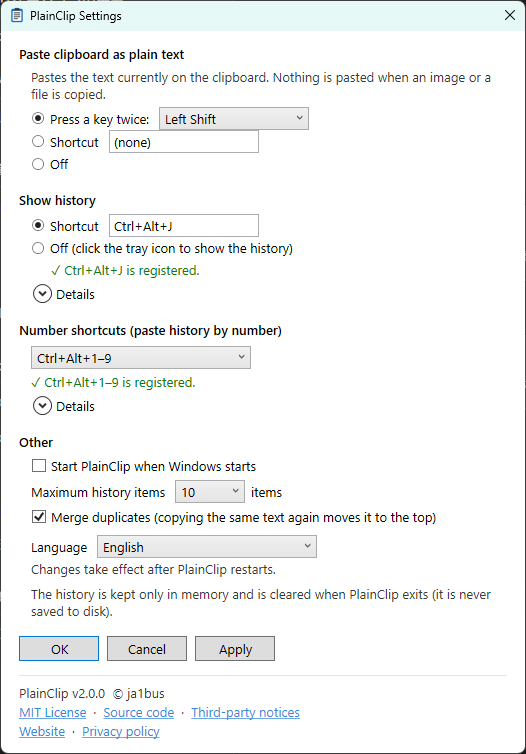 (open the image at full size)
| Item | Description |
|---|---|
| Paste clipboard as plain text | Choose "Press a key twice" (Left Shift / Right Shift / Right Ctrl / Left Ctrl), "Shortcut" or "Off". The default is Left Shift twice. Left Ctrl twice is also the default of PowerToys "Find My Mouse". |
| Show history | Set a shortcut to open the list from anywhere. By default there is none (click the tray icon). |
| Number shortcuts | Choose the modifier for pasting history by number. The default is "Do not use". |
| Start PlainClip when Windows starts | Starts automatically when you sign in. |
| Maximum history items | Choose from 5 to 50 (10 by default). |
| Merge duplicates | When you copy the same text again, it is moved to the top instead of being added twice. |
| Language | Match the Windows display language / English / 日本語. The change takes effect after Plain Clip restarts. |
Click a shortcut box and press keys to check right away whether the combination is used by another app or Windows. If it cannot be used, OK and Apply are disabled. Only overlaps with shortcuts registered for all of Windows can be detected; overlaps with shortcuts that work only inside an app (for example in Excel) cannot.
At the bottom of the window are the version and links to the full MIT License, the source code, third-party notices, the website and the privacy policy.
Keyboard reference
| Where | Keys | Action |
|---|---|---|
| Anywhere | Shift Shift (Left, twice; can be changed) | Paste the text on the clipboard without formatting |
| Modifier + 1-9 (only if set) | Paste that history item | |
| History shortcut (only if set) | Open or close the history list | |
| History list | 1-9 | Paste that item |
| ↑ ↓ Home End | Move the selection | |
| Enter | Paste the selected item (copy it when there is nowhere to paste) | |
| Delete | Delete the selected item | |
| Esc | Close and return to the previous window |
Troubleshooting
Pressing Left Shift twice does not paste
It does not react if you press another key between the two presses or hold a press too long. Press it twice quickly. In apps running as administrator (such as an administrator PowerShell), Windows does not let Plain Clip detect the key presses. If another tool uses a double press of the same key, choose another key or a shortcut in the settings.
Pressing the key twice stopped working entirely
On some PCs (for example, PCs with strict security settings), Windows may stop key monitoring. From version 2.1.0, Plain Clip detects this and restarts it automatically within a few seconds. If it still does not respond, right-click the tray icon and choose "Reset key monitoring" (no restart needed, and the history is kept). If that does not help, switch to a regular shortcut in the settings. Copying from the history list and Ctrl+V always work.
Support asked me for a diagnostic log
In Settings, hold Ctrl+Shift and click the version text at the bottom to start recording a diagnostic log (version 2.1.0 and later). While recording, Settings shows "Open folder" and "Stop recording". Only the times, counts, and results of key monitoring and app events are recorded; clipboard contents, typed characters, and window titles are not. Recording stops automatically after 7 days. The file is only saved on your PC and is never sent automatically.
"No text to paste" appears
This notice appears when there is no text on the clipboard (an image or a file is copied). To use older text, pick it from the history list.
"... press Ctrl+V" appears
This notice appears when there is no window to paste into, or when you paste into a window running as administrator. The text is on the clipboard, so press Ctrl+V where you want to paste it.
"The clipboard changed before pasting, so nothing was pasted" appears
This notice appears when something else was copied (for example, in another app) while Plain Clip was waiting to paste, such as while you were still holding the keys (version 2.0.1 and later). Pasting is canceled so that different content is not pasted. What you newly copied stays on the clipboard. Please try again.
It does not paste in my terminal
Plain Clip pastes with Ctrl+V. In apps that do not paste with Ctrl+V, such as PuTTY or Tera Term, the text is only put on the clipboard. Paste with that app's own paste action (for example, a right-click).
A shortcut cannot be registered
Another app or Windows already uses that combination. Choose a different one.
The history disappeared
The history is kept only in memory, so it is cleared when Plain Clip exits. It is also cleared when Plain Clip restarts after you change the display language.
Privacy
Plain Clip does not communicate over the Internet. The history is kept only in memory and is never saved to disk or logs. For the double press, it checks only which key was pressed and when, and never records the characters you type. See the privacy policy for details.