MarkdownTrellis Clip User Guide
A Chrome extension to paste Markdown copied from an AI answer or elsewhere, check it in a preview, make light edits, and copy it out as Markdown or with formatting.
Open contents
Getting started
| Requirements | Google Chrome 120 or later (tested on Windows 11). No account or other software is needed. |
|---|---|
| Get it | Install it free from the Chrome Web Store. |
- In the Chrome Web Store, click "Add to Chrome".
- Click the puzzle icon in the toolbar and pin MarkdownTrellis Clip so the icon is always shown.
- Click the icon (a green square with a white M) to open a work tab. Each click opens a new tab, and each tab has its own content.
- Copy Markdown from an AI answer or elsewhere and press Ctrl+V in the work tab. The preview appears on the right.
- Click Copy Formatted and paste into Teams or email. To hand over the Markdown as is, click Copy Markdown.
The screen
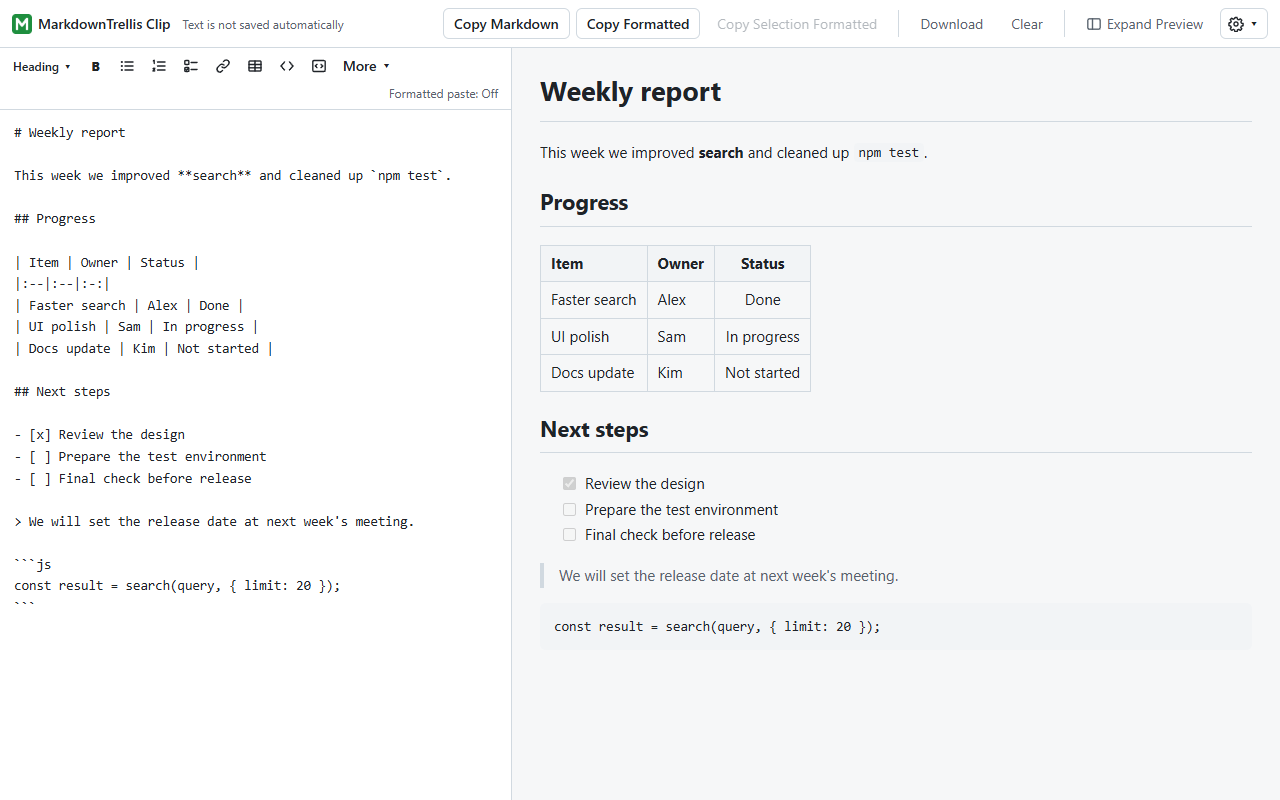 (open the image at full size)
| Text is not saved automatically | Your text is discarded when you close or reload the tab. If there is text, Chrome asks before the tab closes. To keep it, copy it or save it with Download. |
|---|---|
| Copy and save | Copy Markdown, Copy Formatted, Copy Selection Formatted, Download and Clear (Copying and saving). |
| Expand Preview | Closes the editor and shows the preview across the whole window. While closed, the button reads Show Editor and brings it back. Pasting does not close the editor. |
| Gear menu | Extra syntax… (Extra syntax), Paste settings… (Paste settings) and About (version and license). |
| Formatting buttons | The buttons above the editor (Pasting and editing). "Formatted paste: Off/On" at the right shows the paste setting; click it to open the setting (Paste settings). |
On a narrow window, the editor is placed above the preview, and the top buttons use short labels or icons. Light and dark follow your system setting. The language is Japanese if Chrome's language is Japanese, and English otherwise.
Pasting and editing
By default, Ctrl+V takes in plain text only, so colors and formatting from the source page do not come along. To bring in an AI answer or similar as Markdown with its headings and tables, turn on "Convert formatted text to Markdown" in Paste settings. Pressing Ctrl+V outside the editor, for example on the preview, also pastes at the cursor in the editor. Pasted text is never tidied or padded automatically. You can also type, including with an input method editor.
 (open the image at full size)
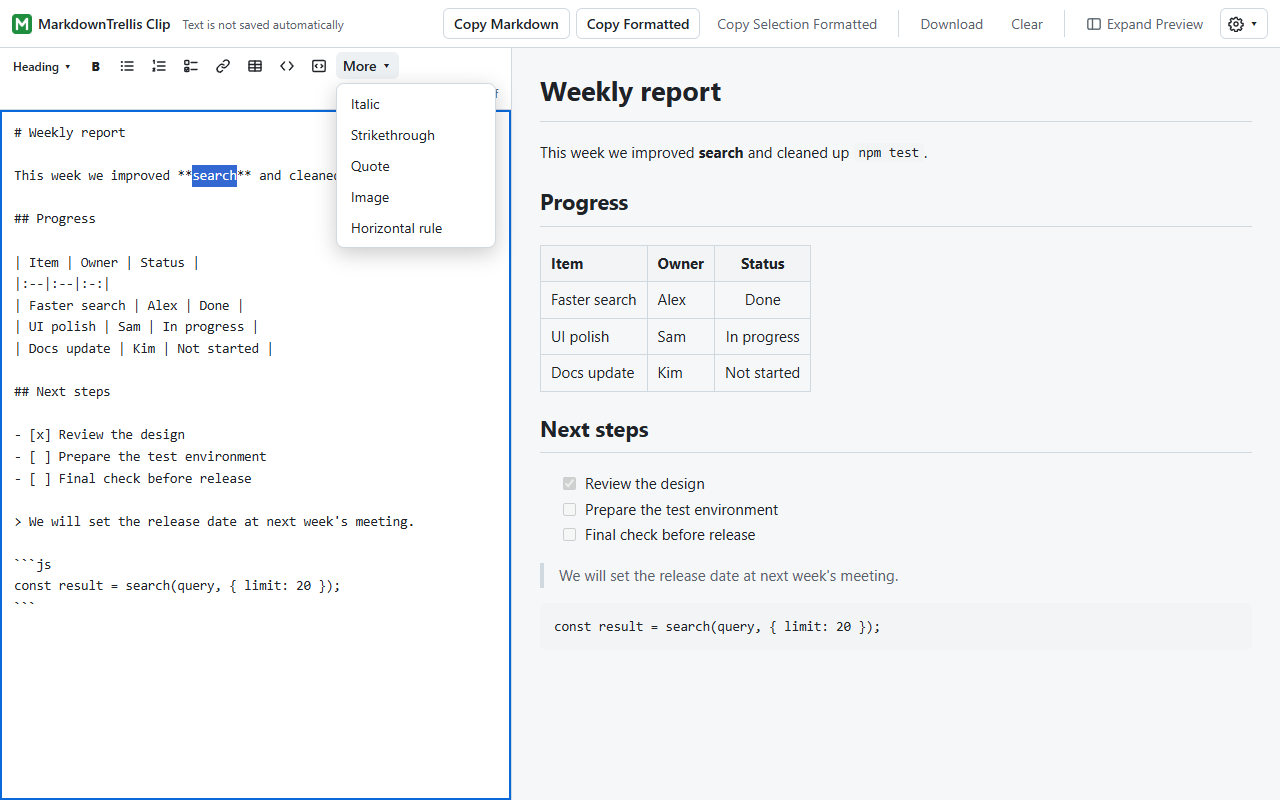
| Heading | Makes the selected lines heading 1–3. Choosing the same level again removes it. |
|---|---|
| B (bold, Ctrl+B) | Wraps the selection in **, or unwraps it. With no selection, inserts the markers and puts the cursor between them. |
| Lists and checklist | Adds - , 1. or - [ ] to the selected lines, or removes it if all lines have it. |
| Link | Turns the selected text into [text](https://) and selects the URL part. |
| Table | Inserts a two-column table and selects the first header. |
| Inline code and code block | Wraps the selected text in ` or the selected lines in ```, or unwraps them. |
| More | Italic, strikethrough, quote, image and horizontal rule. |
Each action is undone with one Ctrl+Z (redo with Ctrl+Y). Clicking a button keeps your selection in the editor.
Preview
The preview uses GitHub Flavored Markdown: headings, bold, italic, lists, task lists, tables, strikethrough, links, autolinks, code, quotes and horizontal rules. It updates shortly after you stop typing and keeps the scroll position.
- Front matter at the top (between
---lines) stays in the editor and is left out of the preview and formatted copy. - When the whole answer is wrapped in
```markdownor similar, a notice appears above the preview. "Hide outer fence in preview" leaves the outer lines out of the preview and formatted copy only. The editor text and Copy Markdown are not affected. Code examples such as```pythonare not treated this way. - Images are not loaded and are shown as their alternative text. Scripts and unsafe HTML are not shown, and the number of removed items is reported.
- Links (http, https and mailto) open in a new tab only when you click them.
- For text over 200,000 characters, automatic updates stop and "Update preview" appears.
Copying and saving
| Copy Markdown | Copies the editor text as is, including front matter and an outer fence. Use it for GitHub, wikis, blogs or AI prompts. |
|---|---|
| Copy Formatted | Copies what the preview shows as formatted HTML together with matching plain text. Apps that accept formatted paste, such as Teams, Outlook and Word, keep headings, tables, lists, bold and code. Checkboxes become ☑ and ☐, collapsible sections (details) are expanded, and images become their alternative text. |
| Copy Selection Formatted | Copies only the range selected in the editor, with formatting. It is available only while a range is selected. Link and footnote definitions outside the selection are not included. |
| Download | Saves the editor text as a UTF-8 .md file named by date and time (markdown-trellis-clip-YYYYMMDD-HHMMSS.md), not by its content. The file stays on your computer. |
| Clear | After a confirmation, erases the editor text, the preview and the undo history. Ctrl+Z does not bring it back. |
When copying succeeds, the button you clicked shows "✓ Copied" for a moment. If copying fails, a message appears at the bottom. Colors and borders may look slightly different depending on where you paste.
Extra syntax
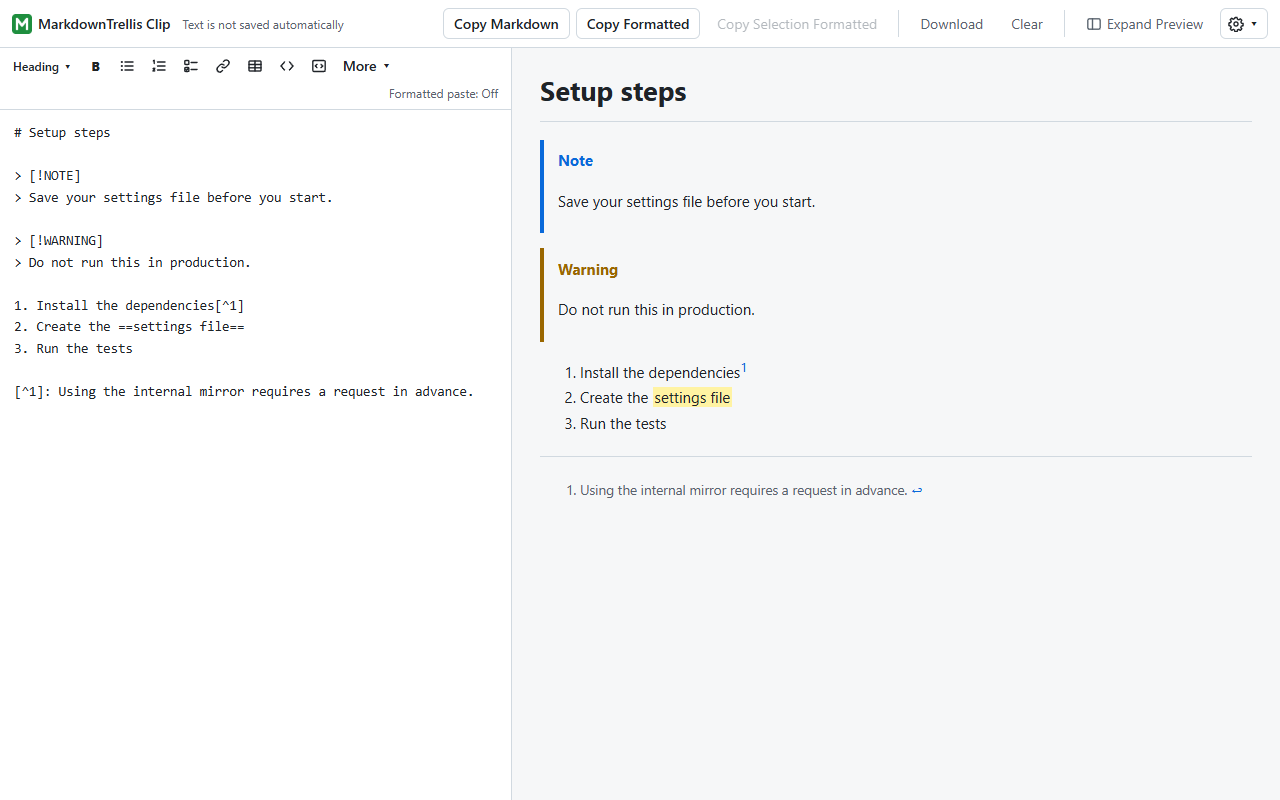
Syntax that is not part of GFM can be turned on as needed. When the text uses syntax that is off, a notice above the preview shows what was found and how many. Click "Extra syntax…" there or in the gear menu, check what you use, and click OK. The editor text is not changed.
 (open the image at full size)
| Alerts | > [!NOTE] (or TIP, IMPORTANT, WARNING, CAUTION) at the top of a quote shows it as a note box. |
|---|---|
| Footnotes | [^1] in the text and a [^1]: note definition collect notes at the end. |
| Math | Text in $x$ or between $$ lines is kept apart from other syntax and shown as text. Formulas are not drawn. |
| Containers | Text from ::: note to ::: is shown in a box. |
| Highlight | ==text== is shown highlighted. |
| Wiki links | [[page]] is shown as a link. It does not open, because the browser cannot open files on your computer. |
| Definition lists | A term followed by a line starting with : shows the term and its description. |
"GitHub compatible" checks alerts and footnotes. The setting is per tab. Select "Save as the default for new tabs" and click OK to start new tabs with the same setting.
Paste settings
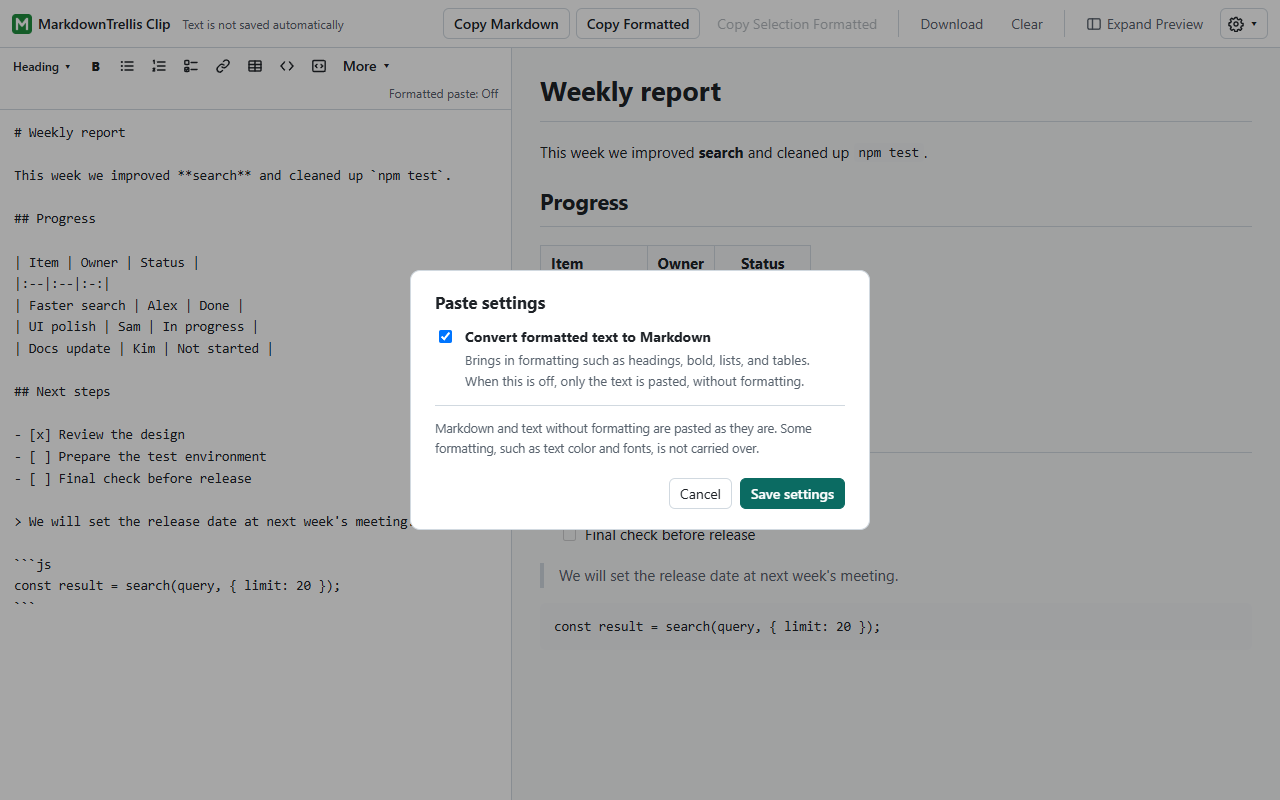
When you copy an AI answer or similar, the clipboard may hold formatted (HTML) text with headings and tables instead of Markdown. By default only the plain text is taken in, so the markup is lost and table columns fall apart. When "Convert formatted text to Markdown" is on in Paste settings, formatted text is converted to Markdown automatically as you paste into the editor. If you paste formatted text while it is off, a notice about the setting appears above the preview. It is off by default.
 (open the image at full size)
- Open the gear menu and choose Paste settings… (or click "Formatted paste: Off" above the editor).
- Check "Convert formatted text to Markdown" and click Save settings. The label changes to "Formatted paste: On".
- Copy an answer and press Ctrl+V in the work tab. When it is converted, "Formatted text was converted to Markdown and pasted" appears.
The setting is saved and also applies to other work tabs and after Chrome restarts. To turn it off, uncheck it and click Save settings. Cancel leaves it unchanged.
| Converted to Markdown | Headings, bold, italic, strikethrough, bulleted and numbered lists (including nested lists), checklists, tables, links (http, https, mailto), quotes, inline code, code blocks (with the language name) and horizontal rules. Bold, italic and strikethrough set with text styles (CSS) are converted too. |
|---|---|
| Pasted as is | Text without formatting, and text that is already Markdown (for example, an answer copied as Markdown with its copy button). Its own Markdown is kept. |
| Tables | The first row becomes the header row. Line breaks in a cell become <br>, shown as line breaks in the preview and formatted copy. Merged cells are filled with empty cells. |
| Not reproduced | Text color, background color, fonts and images (only the alternative text is kept). |
The converted text can be edited like text you type and copied with Copy Formatted to Teams or email. Copy Formatted turns Markdown into formatted text; this setting turns formatted text into Markdown.
One Ctrl+Z undoes the paste. If the converted text would be longer than 20,000 characters, it is pasted as plain text without conversion and a message tells you so.
Your data
The text you enter is handled only inside the work tab and is never saved or sent over the internet. Only your settings are stored: the default for extra syntax (only when you choose to save it) and whether formatted paste is on. See the privacy policy for details.
Troubleshooting
An AI answer or similar loses its markup or its tables fall apart
The answer was copied as formatted text. Click "Formatted paste: Off" above the editor (or open Paste settings… in the gear menu), turn on "Convert formatted text to Markdown", then paste again (Paste settings).
Formatted paste is on, but the text is not converted to Markdown
Text without formatting, text that is already Markdown, and text that would be longer than 20,000 characters after conversion are pasted as they are.
"Could not copy" appears
Copying can fail if the Chrome window with the work tab is behind another window. Click the work tab and try again. Your text is unchanged.
"There is nothing to copy" appears
The editor is empty, or nothing remains after conversion (for example, only front matter). The clipboard is not changed.
Bold or italic does not apply
When the text inside the markers starts or ends with punctuation and a letter follows outside, as in **"important"**s, Markdown's rules do not apply bold or italic. Add a space outside the markers, or move the punctuation outside them.
Japanese italic text is not slanted after pasting
Italic display depends on the font of the app you paste into. Some fonts do not slant Japanese characters.
The preview does not update
For text over 200,000 characters or text that is slow to convert, automatic updates stop. Click "Update preview" above the preview.
Images are not shown
For safety, images are not loaded and are shown as their alternative text, including in formatted copy.
I want back the content of a closed tab
Your text is not saved, so it cannot be restored after you close or reload the tab or click Clear. Use Download to keep content you need.