
MarkdownTrellis Clip
Google Chrome extension
Paste Markdown,
tidy it up, and copy it.
A small workspace for Markdown you copied from an AI answer or anywhere else. Check it in the preview, fix it if needed, and copy it out as Markdown or as formatted text you can paste into Teams or email. What you enter stays in the tab and is never saved or sent.
- Available
- Chrome extension
- Google Chrome 120 or later
- Free
- Version 1.2.0
When it helps
-
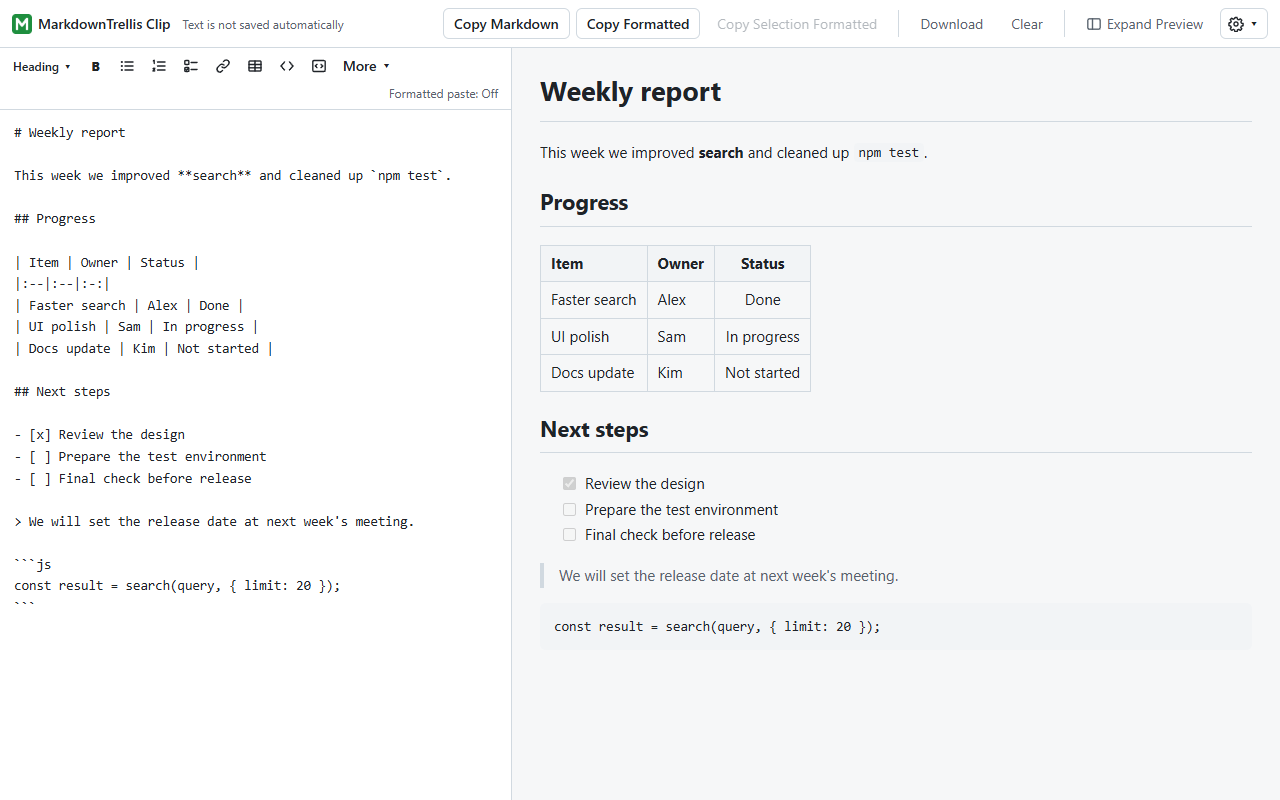
Check an AI answer and fix it a little
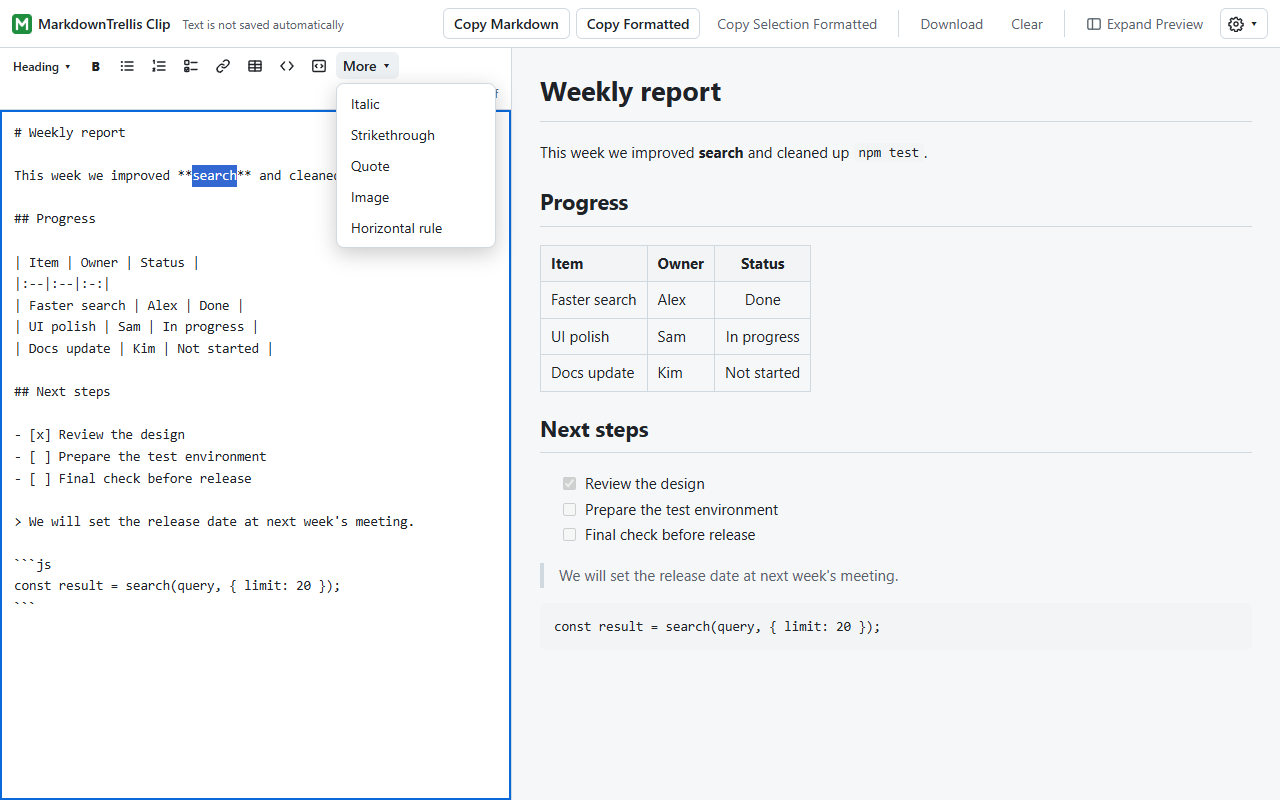
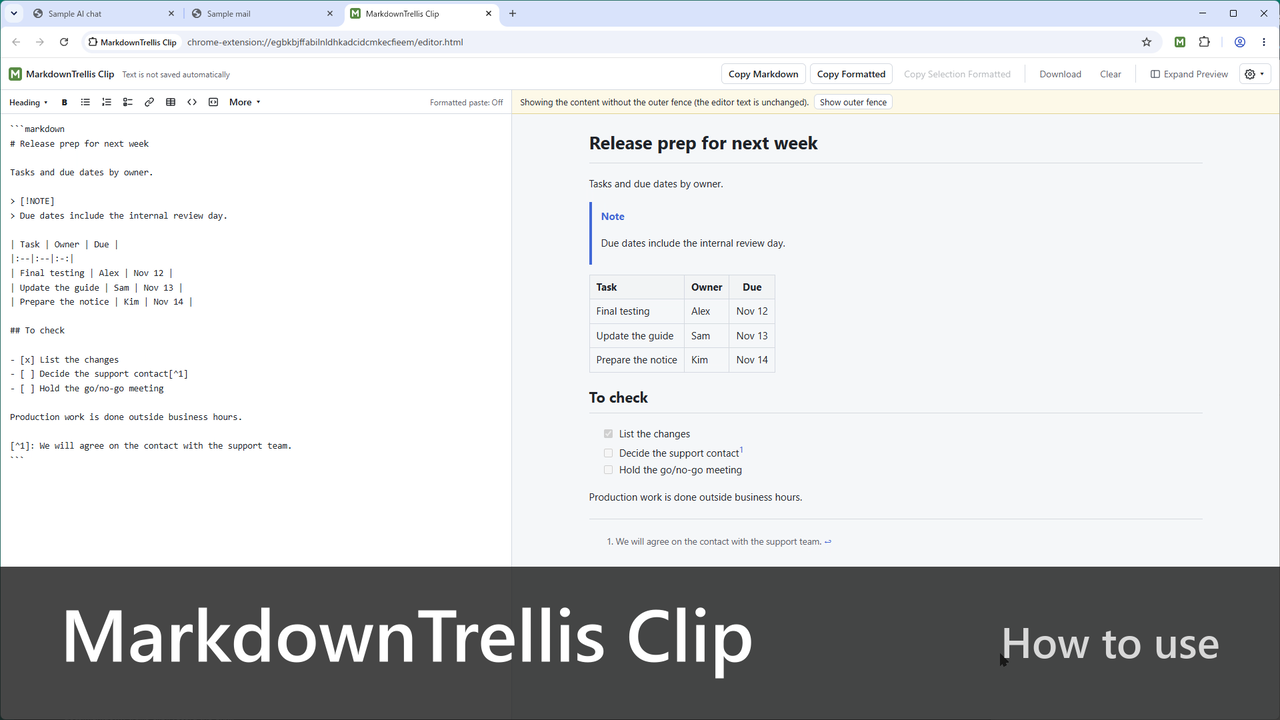
Copy an AI answer or similar, press Ctrl+V, and see the headings and tables laid out. The formatting buttons add or remove bold, headings, lists and tables, and one Ctrl+Z undoes each step.
-
Paste into Teams or email with formatting
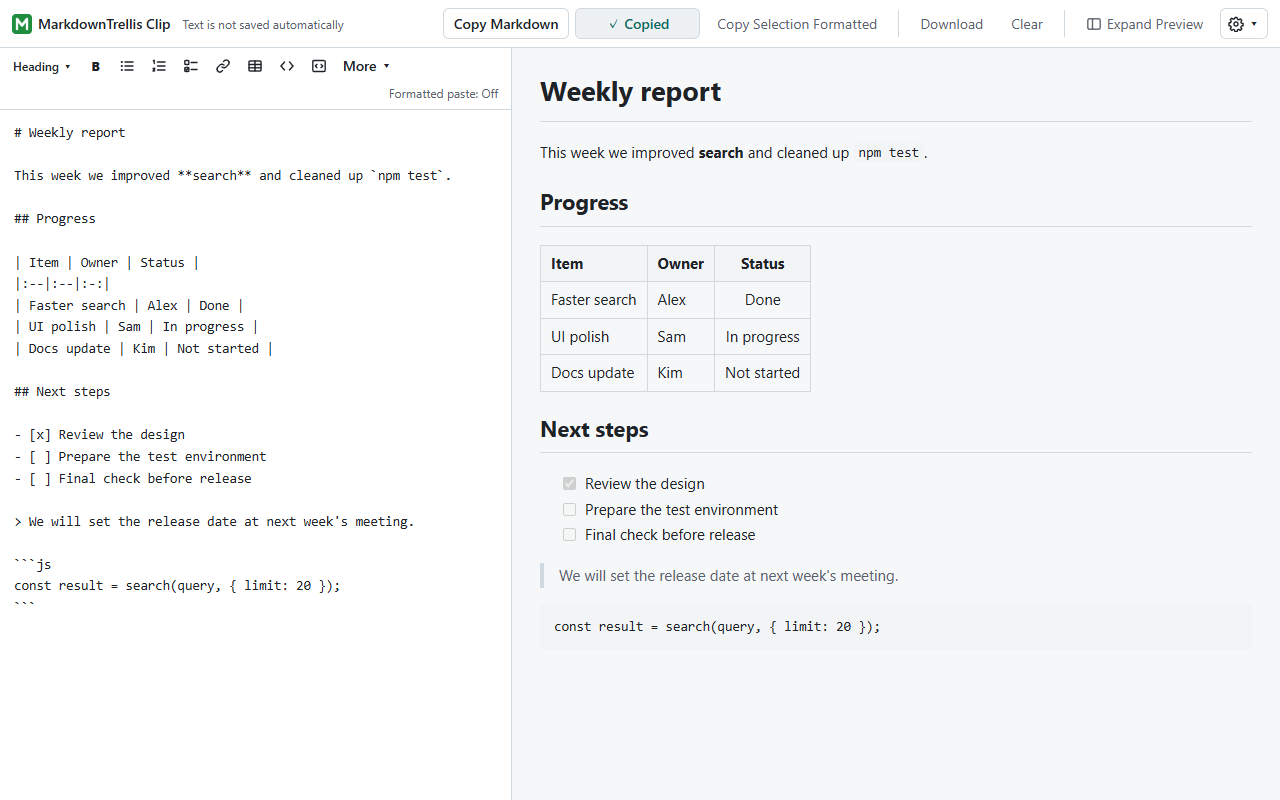
Copy Formatted keeps headings, tables, lists, bold and code when you paste into a chat or an email. For GitHub or a wiki, Copy Markdown hands over the Markdown as is. You can also copy just the range you selected.
-
GitHub alerts, footnotes and more
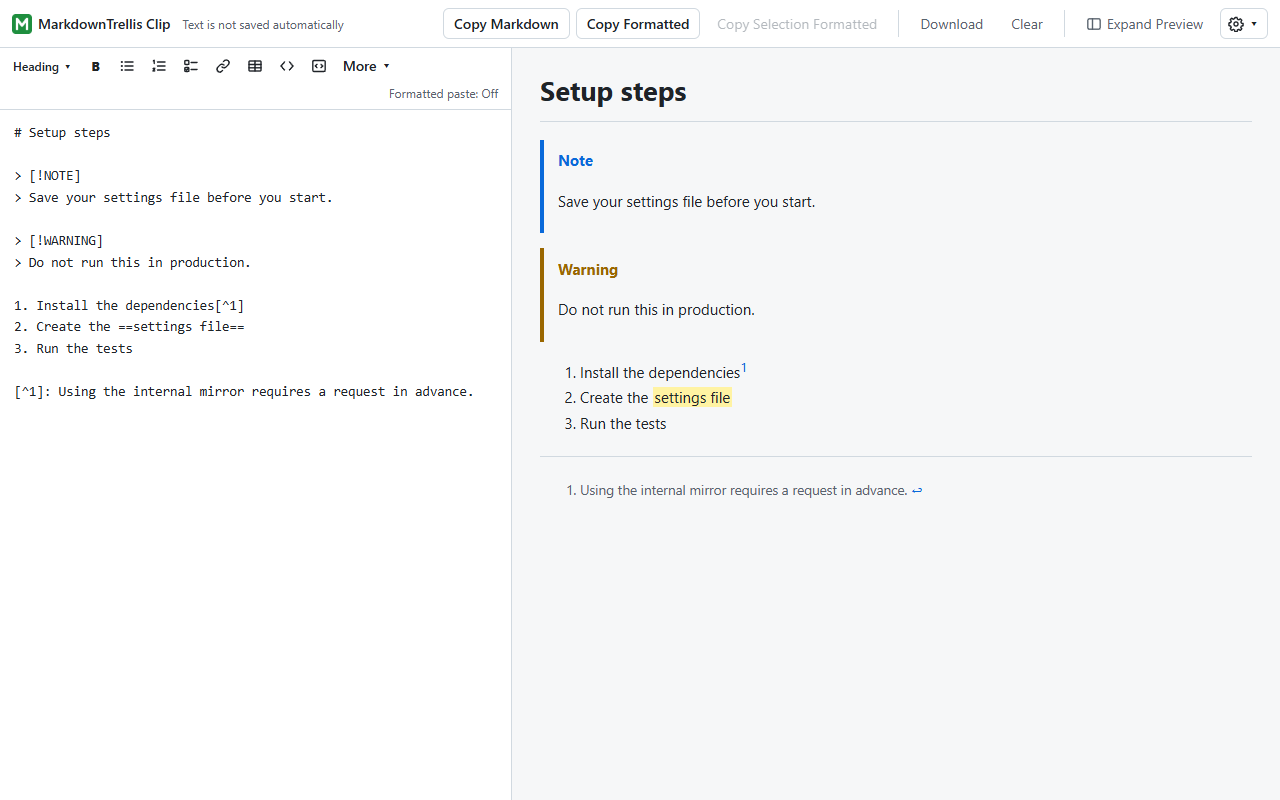
The base is GitHub Flavored Markdown. When the text uses extra syntax such as alerts, footnotes or highlight, a notice appears, and you can turn it on for the preview and formatted copy.
Watch the video
See how to copy an AI answer, paste it into the work tab, check it in the preview and paste it into an email with formatting, in about 2 minutes. The video also covers hiding the outer fence, extra syntax, the formatting buttons (bold, bulleted list and horizontal rule), copying a selection, Download and Clear (no audio, with captions).
Features
- Opens a work tab from the toolbar icon. Each tab has its own content
- Pasting takes in plain text only, so the source page's formatting does not come along. Pasted text is never rewritten automatically
- Paste formatted text (off by default): when on, formatted text copied from an AI answer or elsewhere comes in as Markdown headings, bold, lists, tables, links and code
- Detects a code fence that wraps the whole answer and, if you choose, leaves it out of the preview and formatted copy. Front matter is hidden from the preview and kept in the source
- Extra syntax: alerts, footnotes, math (shown as text), containers, highlight, wiki links and definition lists. Save the set you use as the default for new tabs
- Download the editor text as a .md file. Clear erases the editor text and the undo history
- Safe preview: no scripts run, and images and external files are not loaded. Links open only when you click them
- English and Japanese. Light and dark follow your system setting
Requirements and availability
| Browser | Google Chrome 120 or later (tested on Windows 11) |
|---|---|
| Requirements | None (no account, other software or internet connection needed) |
| Get it | Chrome Web Store (free) |
| Languages | English, Japanese |
Recent updates
- Polished the look and wording. The input area on the left is now called the editor, and Copy Markdown and Copy Formatted look the same. When copying succeeds, the button you clicked shows "✓ Copied" for a moment.
- "Formatted paste: Off/On" now appears at the right of the formatting buttons; click it to open Paste settings. If you paste formatted text while it is off, a notice about the setting appears.
- Expand Preview (close the editor and show the preview across the window) moved next to the settings button. If there is text, Chrome asks before the tab closes. Copy Selection Formatted is available only while a range is selected.
Documents
Source code and license
The source code of this application is available on GitHub under the MIT License.