

PicPreset

Chrome extension for ChatGPT and Gemini (formerly PromptPalette)

Your image and your usual instructions, with one shortcut.

Prepare image generation in ChatGPT and Gemini from a screenshot or image file and a saved prompt. PicPreset attaches the image, switches the chat to image creation, and types your prompt.

  • Available
  • Google Chrome 120 or later
  • Free
  • English and Japanese
  • Version 3.0.2

Get it free on Chrome Web Store Read the user guide

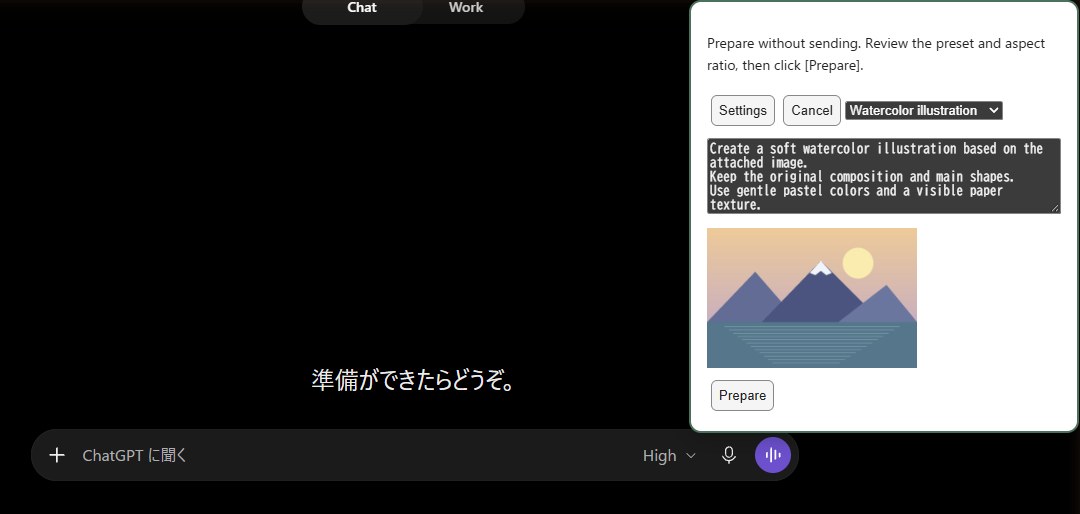
PicPreset panel in ChatGPT showing a preset, prompt, image preview and Prepare button
The panel opens with a shortcut. Check the image and choose a saved preset.

Copy an image → Prepare → Review and send

  1. Copy an imageTake a screenshot to the clipboard. You can also start from an image file.

    Sample input: a simple illustration of mountains and a lake
  2. Prepare with a shortcutPress Ctrl+Shift+Y in ChatGPT or Gemini. The image, image creation mode and prompt are filled in.

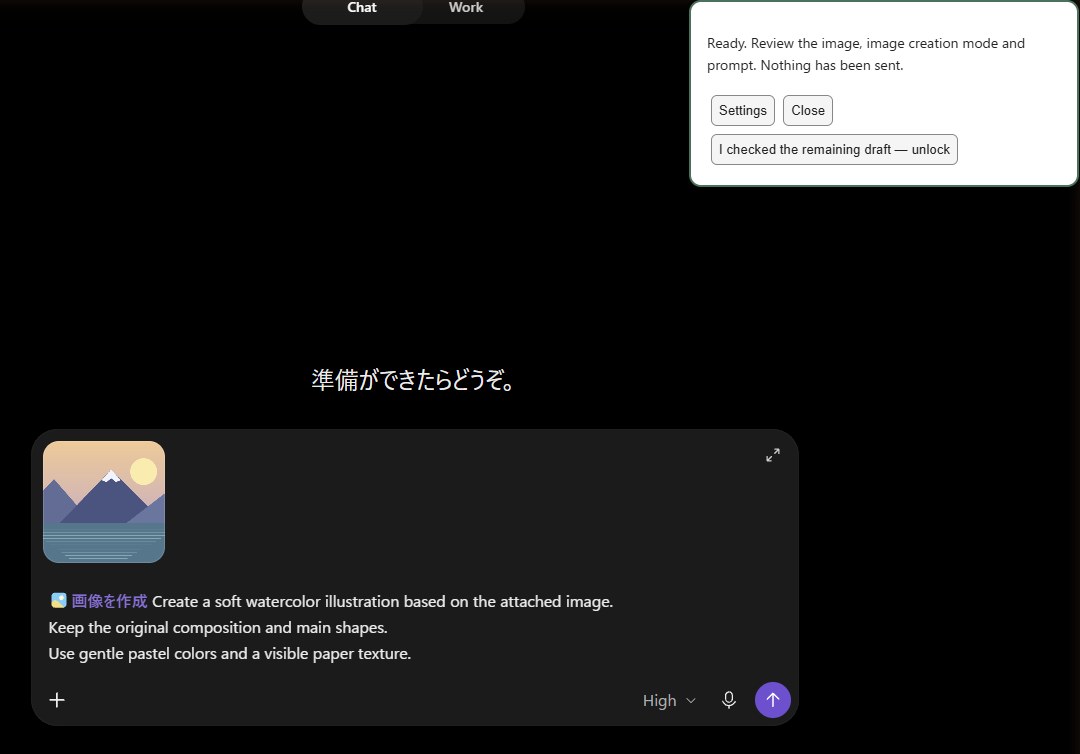
    ChatGPT ready to send with an attached image, image creation mode and watercolor prompt
  3. Review and sendAuto-send is off by default, so you can review and edit before sending.

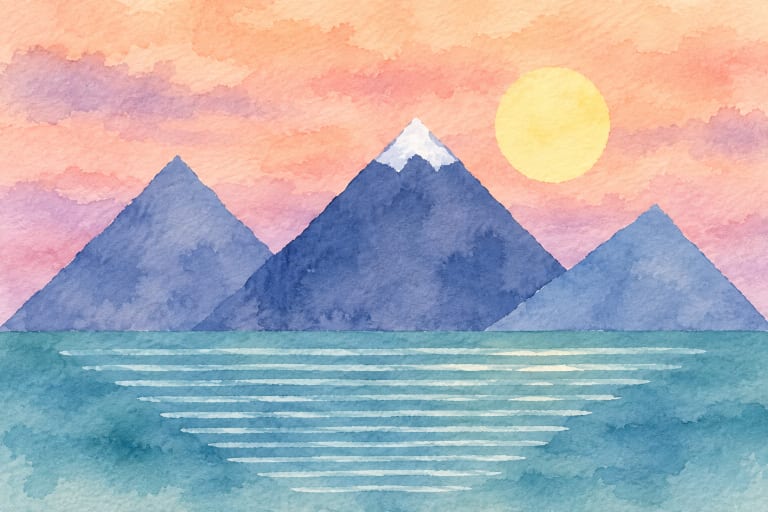
    A watercolor painting of mountains and a lake generated by ChatGPT with the Watercolor illustration preset

About image upload: Even with auto-send off, the image may be uploaded to ChatGPT or Gemini when it is attached during preparation. Reviewing before sending lets you check what goes into the conversation; it does not mean the image stays inside the extension. See the privacy policy for details.

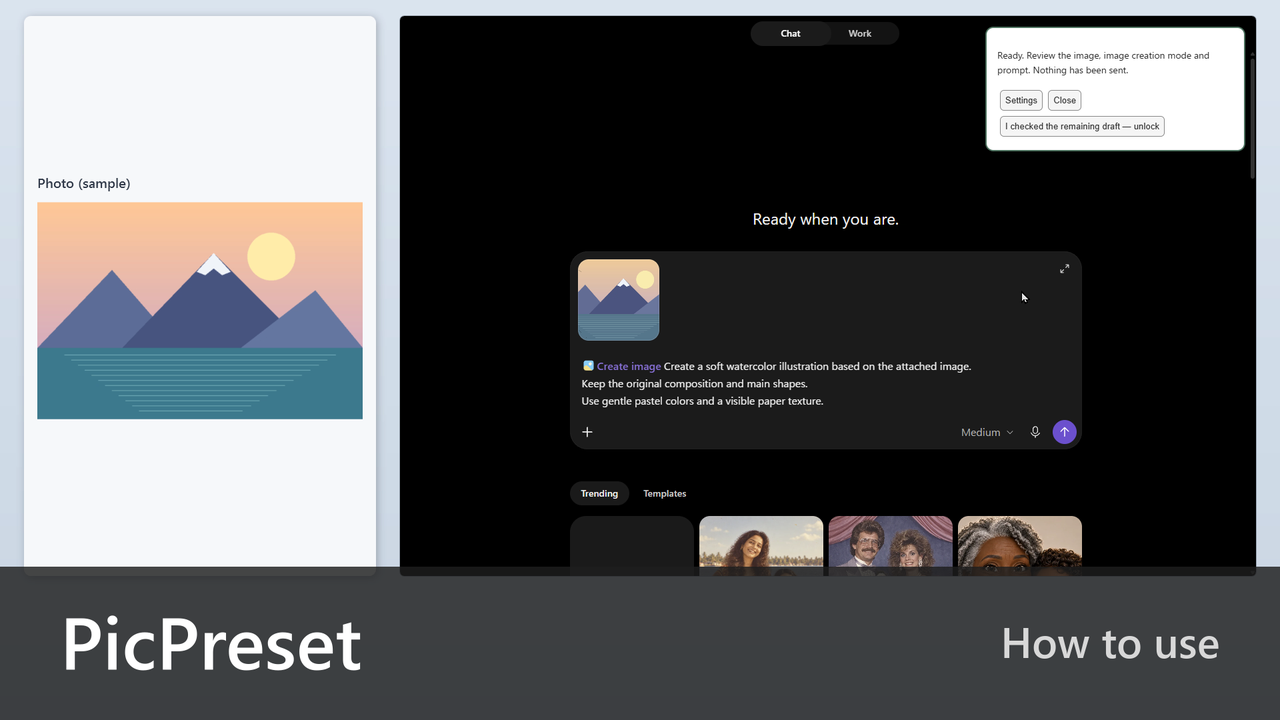
Watch the video

See how to take a screenshot, press the shortcut in ChatGPT, pick a preset and get the generated image in about 45 seconds (no audio, with captions, generation wait cut).

Capture with AreaShot, then use PicPreset

On Windows, AreaShot is a convenient way to capture just the area you need, copy it to the clipboard and pass it straight to PicPreset without saving an image file first.

  1. Press AreaShot’s shortcut (default: Ctrl+Alt+S), select an area and choose Copy to clipboard. Add arrows or text first if needed.
  2. In Chrome, open an empty ChatGPT or Gemini chat and press PicPreset’s shortcut (default: Ctrl+Shift+Y).
  3. Check the preset and image, click Prepare, then review and send.

AreaShot is optional. You can also use an image captured with Win+Shift+S or any other copied image.

When it helps

If your image changes but your instructions stay the same, save those instructions as a preset and reuse them.

  • Screenshots into illustrations

    Redraw part of a web page or slide in your usual style.

  • Teaching materials

    Start from a photo or diagram to request line art or a coloring page.

  • Blog and social images

    Reuse saved instructions to request thumbnails.

  • Compare ChatGPT and Gemini

    Use the same image and instructions in each. Gemini also lets you choose an aspect ratio.

Development story

What prompted it

I often generate images with ChatGPT and Gemini. I got tired of attaching an image and entering the same prompt each time, so I made something to make that work easier. I also wanted to try building a Chrome extension.

What took work

Just after I released it, ChatGPT changed its interface and the process began stopping partway through. Once I fixed that, the check for whether a message had been sent stopped working properly. Building something unfamiliar brings its share of surprises.

What matters to me

I did not set out with a particular design principle, but it has made my own work easier, so I count that as a success. It may suit a fairly specific way of working, but I think it could help others who repeat the same steps.

What you need

  • Google Chrome 120 or later (developed and tested on Windows 11).
  • Signed in to ChatGPT or Gemini in Chrome, with an account that can generate images. Usage limits and plans follow each service’s terms.
  • No API key, extra software, or PicPreset account is needed.
  • ChatGPT and Gemini change their screens from time to time, so what you see may differ from the guide.

ChatGPT is a trademark of OpenAI. Gemini is a trademark of Google LLC. PicPreset is an independent extension developed by an individual and is not affiliated with, endorsed by, or sponsored by OpenAI or Google.

Recent updates

Version 3.0.2Released

  • Renamed PromptPalette to PicPreset, because another extension in the Chrome Web Store had the same name. Features are unchanged.
  • Fixed a missing space in the version shown on the English settings page (Version3.0.2).

See the full changelog

Resources

Source code and license

The source code of this application is available on GitHub under the MIT License.